# AI voice prompts for 2026: how to direct tone, pacing and emotion in AI voiceovers
Use audio tags, punctuation, pronunciation guidance and multi-speaker dialogue to direct AI voiceovers, then carry selected takes into editable creative workflows.
Author: Ravi Parikh
Canonical: https://voyager.so/blog/ai-voice-prompts
Published: 2026-11-17T11:05:00-08:00
Updated: 2026-11-17T11:05:00-08:00
AI voiceovers can sound robotic when creators paste scripts and generate audio without clear direction. The difference between flat output and expressive delivery often comes down to how the prompt describes the performance. Understanding how to direct tone, pacing, and emotion makes voice generation a creative process rather than a one-click task. Voyager's [voice direction guide](/blog/direct-ai-voiceover) demonstrates how to audition voices, guide delivery, and check pronunciation.
This guide covers audio tags, punctuation-based pacing, pronunciation, and multi-speaker dialogue, then shows how to carry the resulting takes into editable video and audio workflows with Voyager. For model-specific controls, see the [Eleven v4 reference](https://voyager.so/resources/models/eleven-v4).
**The short version:** Write for the ear, not the page. Give a voice a clear intention, use supported audio tags such as \[whispers] and \[excited] for emotional changes, and use punctuation and sentence structure for pacing. Eleven v3 and v4 do not support SSML break tags or speed sliders, so test delivery with the voice and model you actually plan to use. In Voyager, keep the script, pronunciation guidance, and takes together, then edit and sync the result in a supported creative app or Voyager's own video and audio editors, as shown in the [feature tutorial workflow](/blog/feature-tutorial-video).
**Key takeaways**
* **Audio tags direct emotion:** Supported tags such as \[whispers], \[excited], and \[sighs] help shape delivery; the [voice direction guide](/blog/direct-ai-voiceover) shows how to audition real lines.
* **Punctuation shapes pacing:** Ellipses suggest pauses, commas separate thought groups, and shorter sentences improve spoken rhythm, as demonstrated in the [feature tutorial workflow](/blog/feature-tutorial-video).
* **Voice selection matters:** A calm voice may respond less reliably to shouting or other delivery styles outside its usual character; the [voice-cloning guide](/blog/clone-your-voice-for-narration) explains why the sample's speaking style matters.
Sources checked on 17 November 2026 include ElevenLabs’ [speech guidance](https://elevenlabs.io/docs/overview/capabilities/text-to-speech/best-practices), [speed controls](https://elevenlabs.io/docs/eleven-agents/customization/voice/speed-control), [Text to Dialogue documentation](https://elevenlabs.io/docs/overview/capabilities/text-to-dialogue), and MiniMax’s [speech API documentation](https://platform.minimax.io/docs/api-reference/speech-t2a-http). Voyager, the desktop app our team builds, connects voice generation with editable creative workflows.
## What are AI voice prompts?
AI voice prompts are text-based directions that guide synthetic speech toward specific emotional tones, delivery speeds, and vocal qualities. Instead of accepting a default reading, creators can direct performances much like a voice director working with talent. A good prompt identifies the listener, the message, and what should change in the delivery.
Modern text-to-speech systems interpret several types of direction:
* **Explicit tags:** Bracketed instructions embedded in the script, when supported by the selected model
* **Punctuation cues:** Commas, ellipses, and sentence breaks that influence timing
* **Contextual description:** Surrounding language that establishes mood, character, and purpose
* **Parameter settings:** Available controls for stability, speed, emotion, or voice characteristics
The goal is to produce audio that matches creative intent while retaining the ability to review and revise individual takes. Start with a suitable voice, test a representative line, and check the result in the context of the finished video, tutorial, or scene. A voice that sounds convincing in isolation may need different pacing once paired with visuals.
## Directing emotion with audio tags
Audio tags provide an explicit way to suggest emotional delivery. The bracketed instructions guide the model, but the result still depends on the chosen voice, model, and surrounding text.
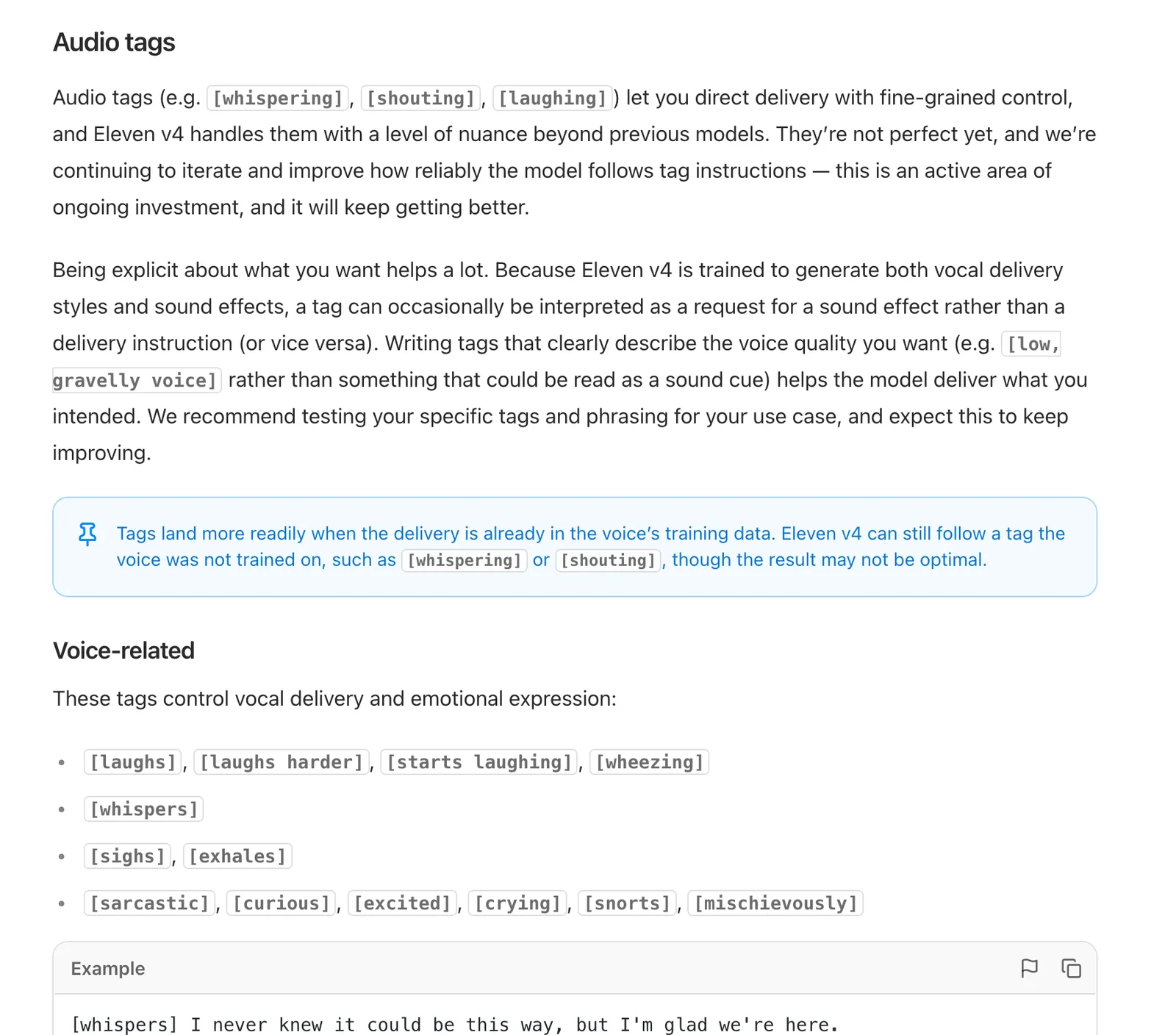
The vendor’s audio-tag guidance distinguishes delivery cues from sound effects and warns that results vary. Documentation checked 17 November 2026.
### Common emotion tags
[Eleven v3 and v4 support bracketed delivery instructions](https://elevenlabs.io/docs/overview/capabilities/text-to-speech/best-practices#audio-tags), although individual tags may not behave identically in every voice. Other speech models may use parameters or different syntax:
* \[whispers] for intimate, quiet delivery
* \[excited] for high-energy moments
* \[sighs] for resignation or exhaustion
* \[laughs] for a laugh within the performance
* \[angry] for confrontational tone
* \[sad] for somber delivery
* \[softly] for gentle, understated speech
### How to structure tagged scripts
Place tags immediately before the words they should affect. Keep instructions short and change direction only where the performance requires it:
```text
[whispers] This is a secret nobody else knows.
[excited] We just hit our funding goal!
[sighs] I suppose we have to start over again.
```
For more complex scenes, a supported expressive model can also interpret descriptive directions combining character, setting, and emotional state:
```text
[Low, steady voice, restrained urgency] Keep the lantern covered.
If they see the light, they will know we crossed the river.
[Brief pause]
[Quietly, with controlled fear] I heard them at the bridge. Not soldiers. Something else.
```
### Matching tags to voice character
Not every voice responds equally well to every tag. A voice with a calm delivery may become strained or inconsistent when asked to shout, even if the model understands the instruction. Audition a voice using the project's most demanding line before committing to a complete script.
Mark the emotional beats first: which lines need emphasis, which need softness, and where the listener should notice a shift. Then add tags only to those moments. A useful test is to generate the same sentence with and without the tag and compare whether the change actually serves the story.
### Prompt: test emotional range before recording
A short audition prompt helps determine whether the selected voice can deliver different emotions consistently. In Voyager, creators can review generated takes before placing the selected performance into a larger project.
```text
Using the selected voice, generate three versions of this approved line:
"We finally made it. Everything we've worked for is here."
Version 1: Calm, reflective, with a quiet sense of relief.
Version 2: Excited and energetic, emphasizing "finally."
Version 3: Warm and emotional, with a gentle pause before the final sentence.
Keep the wording identical in every version.
Preserve all three takes for comparison.
Review pronunciation, pacing, and emotional consistency.
```
This approach isolates the emotional direction so that differences between takes are easier to evaluate. The [voice direction guide](/blog/direct-ai-voiceover) demonstrates a similar audition process using a representative script.
## Controlling pacing and delivery speed
Pacing determines whether a voiceover feels rushed, deliberate, or conversational. Punctuation works across many speech models, while numerical speed controls depend on the model and interface.
### Punctuation-based pacing
Text-to-speech models often interpret punctuation as timing and intonation cues:
* **Ellipses (...):** Suggest a noticeable pause or hesitation
* **Commas:** Separate short thought groups
* **Periods:** Signal a complete stop between sentences
* **Question marks and exclamation points:** Influence emphasis and intonation
A script written for reading often needs restructuring for speech. Long sentences with several clauses can sound rushed when spoken aloud. Breaking them into short, complete ideas gives the voice more room to communicate.
**Before (reading-optimized):**
```text
We are excited to announce the launch of our new product, which includes several features that customers have been requesting for months.
```
**After (speech-optimized):**
```text
We're so excited... our new product just launched!
It includes the features customers have been asking for.
```
Contractions and conversational punctuation are useful starting points, but they are not precise timing commands. Listen to the generated take, then adjust punctuation or split the script into sections where a pause must land on an edit. Voyager's [feature tutorial example](/blog/feature-tutorial-video) demonstrates how narration can determine the timing of captions and screen actions.
### Platform speed controls
Some text-to-speech models expose a [speed range of 0.7x to 1.2x](https://elevenlabs.io/docs/eleven-agents/customization/voice/speed-control). Eleven v3, v4, and v4 Turbo do not offer these speed controls, so pacing for those models should be directed through text structure and audio tags. Where an adjustable speed setting is available, these are practical starting points:
* **0.7x to 0.9x:** Deliberate educational or reflective delivery
* **1.0x:** Baseline conversational speed
* **1.1x to 1.2x:** Brisk instructions or energetic short-form content
Extreme settings can reduce intelligibility or introduce artifacts. If a line must match a precise duration, first make the writing concise, then use the video or audio timeline to trim gaps and align the finished take rather than expecting one speed setting to solve the entire edit.
### SSML limitations
Some speech systems use SSML (Speech Synthesis Markup Language) such as `` for pause control. Eleven v3 and v4 do not support SSML break tags, so pasting them into those prompts is not a reliable method. Use punctuation, short sentences, and supported tags instead. If a different model supports SSML, check its syntax before inserting markup.
### Prompt: create natural pauses for a tutorial
Tutorial narration benefits from clear pauses between instructions because the viewer needs time to understand what is happening on screen. Voyager can help coordinate the narration with an editable video timeline.
```text
Create a clear, professional voiceover for this software tutorial.
Use a calm, instructional tone.
Separate each instruction with a natural pause.
Emphasize the action words, including "select," "open," and "save."
Avoid rushing through menu names or technical terms.
Generate the narration as separate sections.
Keep the approved wording unchanged.
Prepare the selected takes for alignment with the tutorial timeline.
```
For a complete example of narration working alongside cursor movements and captions, see the [feature tutorial workflow](/blog/feature-tutorial-video).
## Shaping vocal tone and style
Tone is the overall quality of the performance: authoritative or friendly, formal or casual, energetic or calm. It depends on both the selected voice and how the prompt frames the listener's needs.
### Defining tone through voice selection
Voice catalogs can provide samples suited to narration, conversation, or announcements. Choose a voice whose natural delivery is close to the project, rather than trying to force an unsuitable voice into an entirely different character.
Key characteristics to consider:
* **Register:** Higher or lower baseline pitch
* **Timbre:** Warm, bright, resonant, or crisp sound
* **Articulation:** Precise enunciation versus relaxed speech
* **Accent:** Regional, linguistic, and pronunciation characteristics
### Tone-setting prompts
Instead of relying on a single emotion adjective, establish the ongoing purpose of the read. These examples can be adapted for product demos, tutorials, and educational videos. Voyager's [feature tutorial workflow](/blog/feature-tutorial-video) shows why narration needs to match the actions and captions on screen.
```text
[Warm, conversational narration for a 30-second product demo. Speak to busy small-business owners who want a simple explanation. Keep the opening calm, emphasize the main benefit, and finish with an inviting rather than sales-heavy call to action.]
```
```text
[Professional, measured delivery for a software tutorial. Explain each step clearly, maintain an even pace, and leave a brief natural pause after important instructions. Prioritize clarity over excitement.]
```
```text
[Friendly but authoritative narration for an educational video. Speak like a trusted expert explaining a complex topic to beginners. Start with a reassuring tone, emphasize the key takeaway, and finish confidently without sounding dramatic.]
```
Define what the listener should think, feel, or do before selecting delivery instructions. Instead of simply writing "sound confident," specify that the listener needs reassurance that the task is straightforward. This makes it easier to judge whether the output meets the intention.
### Prompt: direct a product demo voiceover
Product demonstrations need narration that explains benefits while remaining synchronized with the product visuals. Voyager can connect voice generation with the editable video production process.
```text
Create a 30-second voiceover for our product demonstration.
Audience: Marketing managers and small-business owners.
Tone: Confident, approachable, and professional.
Pacing: Conversational, with a brief pause after each major benefit.
Emotion: Start with curiosity, build enthusiasm, and finish with confidence.
Use the approved product script.
Generate two delivery variations for review.
Check the pronunciation of all product and brand names.
Keep the selected narration ready for synchronization with the video timeline.
```
The [talking-character workflow](/blog/talking-character-launch-video) provides another example of coordinating dialogue, scene timing, and visual production.
### Avoiding tonal whiplash
Rapid shifts between excitement, sadness, and anger within a few lines can sound exaggerated rather than expressive. Establish a consistent baseline and reserve emotional changes for meaningful story beats. Listen to each transition and revise when the change overwhelms the words.
Effective pattern:
```text
[peaceful] The project started slowly. We faced challenges, sure.
[quietly determined] But we kept working.
[building confidence] And then everything changed.
```
Ineffective pattern:
```text
[excited] The project started! [sad] We faced challenges. [angry] We almost quit! [joyful] But then we succeeded!
```
## Advanced prompting techniques
Complex voiceover projects need more than isolated tags. A consistent character, clear pronunciation, and planned emotional progression help preserve continuity across revisions.
### Multi-part emotion directives
For scripts with evolving emotional states, describe the progression rather than abruptly changing the performance on every line:
```text
[Start hesitant, gradually becoming more confident as the explanation continues]
I wasn't sure this would work at first.
The data looked promising, but we'd been wrong before.
Then the results came in.
[Now fully confident]
We'd done it. The model worked.
```
### Context-aware multi-speaker dialogue
Creating conversations between multiple voices requires consistent speaker assignments, clear character relationships, and emotional context. Each speaker should have a distinct intention, and each reply should respond naturally to the preceding line.
A six-part character brief can help organize dialogue:
1. **Identity:** Who is speaking, and what role do they play?
2. **Response guidelines:** How should each character communicate?
3. **Guardrails:** Which delivery styles should the voice avoid?
4. **Context:** What situation are the speakers in?
5. **Workflow:** What is the scene trying to accomplish?
6. **Examples:** What should a successful exchange sound like?
For prerecorded dialogue, keep the same voice assigned to each character across revisions, then review the rhythm of the exchange as a whole. The [two-character dialogue guide](/blog/two-character-ai-dialogue) demonstrates casting and scene timing in an editable creative workflow. For a video built around one recorded conversation, the [talking-character video guide](/blog/talking-character-launch-video) shows how dialogue, shots, and captions can stay synchronized.
### Prompt: generate two-character dialogue
When two speakers share a scene, the prompt should clearly distinguish their voices, motivations, and delivery styles. Voyager supports saving character voices and revising dialogue timing while retaining the original takes.
```text
Create a short dialogue between two characters.
Character A:
Warm, enthusiastic, and quick to respond.
Speak with curiosity and natural excitement.
Character B:
Calm, thoughtful, and slightly reserved.
Use measured pacing with subtle pauses.
Assign a distinct voice to each character.
Keep voice assignments consistent throughout the scene.
Preserve the approved dialogue.
Generate the character performances for timeline editing.
Leave enough space between replies for natural reactions.
```
The [two-character dialogue example](/blog/two-character-ai-dialogue) shows how separate character recordings can be adjusted to improve conversational timing.
### Filler words and natural speech patterns
Human speech includes hesitations, fillers, and self-corrections. Adding them deliberately can make a line more conversational, but too many will slow the message or obscure the main point:
```text
Yeah, um, so... I can help with that, no problem.
Let me think... okay, here's what we should do.
```
Specify where a hesitation belongs instead of telling the model to add fillers everywhere. For a polished product demo, one deliberate pause may be more effective than repeated "um" or "uh" sounds. Check whether the model voices those fillers naturally, since results vary.
### Pronunciation control
Brand names, technical terms, and acronyms often need special attention. Two approaches work, depending on the selected model:
* **Model-supported IPA pronunciation:** /ˈnaɪki/ for Nike, entered through an appropriate pronunciation field or dictionary. Not every model recognizes raw IPA written into the script.
* **Alias expansion:** Write a phonetic approximation or alternate spelling, then test the pronunciation in the same sentence where the term will appear.
Some systems support [pronunciation dictionaries](https://elevenlabs.io/docs/overview/capabilities/text-to-speech/best-practices#pronunciation-dictionaries) for recurring terms. In Voyager, scripts and pronunciation guidance can stay beside generated takes in the Voice panel, making it easier to review a corrected line without losing earlier versions. The [pronunciation walkthrough](/blog/direct-ai-voiceover) demonstrates why checking the complete read matters, even when a name sounds correct in a short audition. Always listen to the full sentence, because a word may change pronunciation when spoken in context.
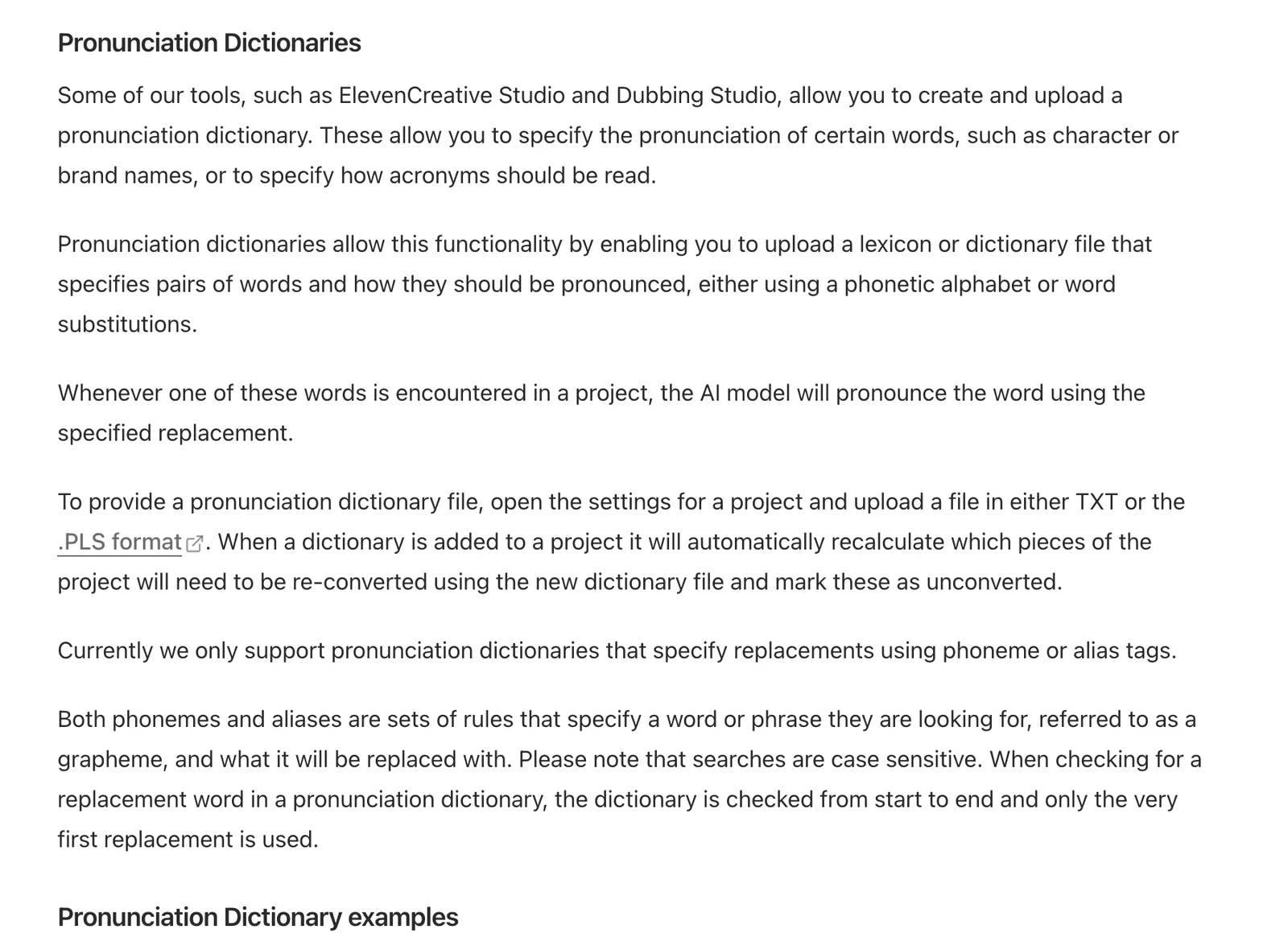
Dictionary rules depend on the model and tool; the documentation explains replacements and supported dictionary formats. Documentation checked 17 November 2026.
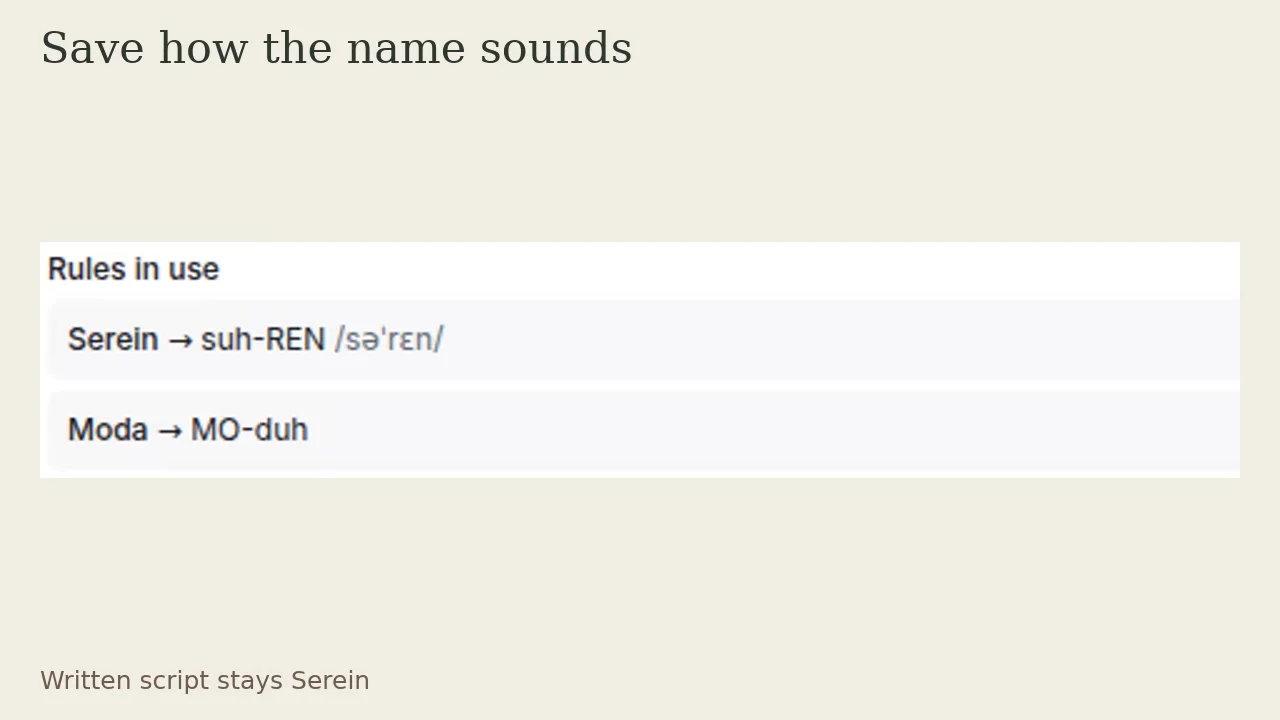
The existing voice direction example stores how the name should sound without changing its written spelling. Example recorded 30 September 2026.
### Prompt: check brand-name pronunciation
A pronunciation review is particularly useful for marketing videos, branded explainers, and technical tutorials containing unusual names. Voyager's voice workflow makes it possible to compare corrected recordings with earlier takes.
```text
Review the approved narration for pronunciation accuracy.
Identify brand names, product names, acronyms, and technical terms.
Generate a short pronunciation test for each potentially difficult term.
Use supported pronunciation rules where available.
Check each corrected term in its full sentence.
Keep the original and corrected takes for comparison.
Do not change the meaning or approved wording of the script.
Prepare the corrected narration for the existing video project.
```
## Common mistakes and how to fix them
Even with detailed prompts, predictable problems arise when a script is written for silent reading rather than spoken performance.
### Robotic or flat delivery
**Cause:** Long sentences, formal phrasing, or a voice that does not fit the intended delivery.
**Fix:** Use contractions, short thought groups, and conversational punctuation. Add emotion tags at meaningful moments rather than expecting every line to carry the same intensity.
### Pronunciation errors
**Cause:** Unusual brand names, acronyms, or technical terms that the model interprets inconsistently.
**Fix:** Try a supported pronunciation rule or phonetic alias, then test the problem word in context before generating the full script.
### Inconsistent pacing
**Cause:** Too many pause cues, changing sentence lengths, or conflicting controls.
**Fix:** Use punctuation for natural breaks instead of unsupported SSML tags. Apply speed controls only on models that offer them, and split long scripts when sections require different rhythms.
### Emotion overuse
**Cause:** Too many tags creating exaggerated or unstable shifts in delivery.
**Fix:** Keep an emotional baseline and use special cues only at turning points. For narration, review the entire take to see whether the emotional changes support the message instead of distracting from it.
### Unintended voice behavior
**Cause:** Asking a voice for an unfamiliar register, such as a calm voice instructed to shout.
**Fix:** Audition the most demanding line early. If the required character changes dramatically across scenes, test separate voices or revise the performance direction before committing to the project. For changes in how a recording sounds within a scene, Voyager's [custom voice effects](/blog/custom-voice-effects) workflow provides an editable alternative to generating a completely new performance.
## Choosing a voice model for an editable workflow
The model should fit the script and the finished production, not just sound impressive in a short demo. Voyager connects supported external voice models to an agent-assisted process, so model selection is one step in a larger workflow.
### Model comparison
| Model available in Voyager | Prompting approach | Production consideration |
| --------------------------------------------------------------------------------------- | -------------------------------------------------------- | -------------------------------------------------------- |
| Eleven v4 | Audio tags and descriptive delivery instructions | Expressive narration; no SSML or speed slider |
| Eleven v4 Turbo | Audio tags and contextual directions | Lower-latency delivery; no SSML or speed slider |
| Eleven Flash v2.5 | Text structure, supported SSML breaks, and speed control | Longer, high-volume reads with different pacing controls |
| [MiniMax Speech 2.8 HD](https://platform.minimax.io/docs/api-reference/speech-t2a-http) | Emotion setting and model-specific pause markers | Uses different syntax from Eleven audio tags |
These are externally provided models available through Voyager, not models developed by Voyager. Confirm the available model, voice, and supported prompt syntax before generating. A tag that works on one model may be read aloud or ignored by another. For repeatable production, record the chosen model and voice alongside the script. Voyager's [model reference library](https://voyager.so/resources/models) provides model-specific settings, limits, and pricing information.
### Cost considerations
Voice generation and editing are separate costs. Voyager's built-in Design, Video, and DAW engines are free with the desktop app, while managed media generation uses paid-plan credits, limited Free voice allowances, or a supported bring-your-own-key setup. The table shows Voyager's published example credit rates, read on 17 November 2026, to help plan voiceover work for 2026. Rates are model-specific and may change:
| Voice model | Approximate Voyager credits per minute (900 characters) | Useful check before generating |
| --------------------- | ------------------------------------------------------- | ---------------------------------------------------- |
| Eleven v4 | 7.2 | Confirm voice and emotional delivery settings |
| Eleven v4 Turbo | 3.6 | Confirm that faster delivery still suits the project |
| Eleven Flash v2.5 | 3.6 | Confirm speed and pause syntax |
| MiniMax Speech 2.8 HD | 9 | Confirm emotion and pause parameters |
Voyager's [pricing details](https://voyager.so/pricing) list managed plan allowances and model rates. The free app does not mean cloud voice generation is free: agent subscriptions, model keys, app licenses, and generation credits can have separate requirements. Voyager states that managed generation is charged at provider cost without markup, but repeated auditions still consume credits when billed generations are made.
Commercial use depends on the selected model provider's terms and the rights to the source voice, not simply on whether an editing app is free or paid. For client narration, confirm that the voice is licensed for the intended use and that you have permission to clone any person whose voice is recorded. Avoid presenting synthetic reenactments as genuine recordings.
## Integrating AI voiceovers into creative workflows
A generated voiceover becomes production-ready when it fits into a timeline, can be revised without rebuilding the whole edit, and stays aligned with captions, visuals, and music. Voyager connects agent-directed generation with its built-in editors and supported creative applications.
### From generation to timeline
A typical workflow involves:
1. Write and tag the script with emotion, pacing, and pronunciation cues
2. Generate and audition the voice in Voyager's Voice panel
3. Keep the chosen take and review any corrected versions
4. Place the audio in Voyager Video, Voyager DAW, or a supported external editor
5. Sync the narration with the timeline, captions, music, and final export
Voyager connects supported voice models, including Eleven v4 and MiniMax Speech, with agent-assisted creative workflows. Its Voice panel keeps scripts, selected voices, pronunciation rules, and generated takes together for review. Creators can then continue in Voyager Video and DAW or work with licensed tools such as Premiere Pro, After Effects, DaVinci Resolve, Final Cut Pro, and Ableton Live. Available editing routes differ by app and operating system, so check the relevant prerequisites before asking the agent to modify an existing project.
For consistent narration, Voyager's [voice-cloning workflow](/blog/clone-your-voice-for-narration) documents cloning your own voice for eligible Ultra and GigaMax users. The documented in-app cloned takes use Eleven v3; support for cloning offered by an external provider does not automatically mean that provider's cloning workflow is available inside Voyager.
### Creative app integrations and MCPs
Voyager extends AI voiceover production beyond generation by connecting its agent harness with creative software, built-in editing engines, and compatible Model Context Protocol (MCP) servers. Creators can generate narration, prepare editable assets, and continue working in their preferred production environments. Depending on the application, Voyager uses supported scripting, project-import, or computer-control routes, while MCP integrations provide additional ways for agents to interact with tools. Its [MCP support](https://voyager.so/faq) allows compatible servers to be connected through Settings and Integrations.
Voyager supports several creative production workflows:
* **Premiere Pro:** Prepare narration, organize timeline assets, and work with supported project-editing routes. The [Premiere Pro MCP guide](/blog/premiere-pro-mcp) explains how compatible bridges connect agents with editing projects.
* **After Effects:** Coordinate narration with animated titles, motion graphics, and composition timing. The [After Effects MCP guide](/blog/after-effects-mcp) covers scripting and compatible MCP workflows for project revisions.
* **DaVinci Resolve:** Bring generated voiceovers into video editing and finishing workflows. The [Resolve MCP guide](/blog/davinci-resolve-mcp) documents supported connection methods and edition-specific requirements.
* **Ableton Live:** Develop music and audio arrangements around generated dialogue or narration using supported agent connections. The [Ableton MCP guide](/blog/ableton-mcp) explains how MCP integrations interact with editable music projects.
* **Voyager Video and DAW:** Continue assembling, editing, mixing, and refining the voiceover within Voyager's built-in creative tools. The [voice effects guide](/blog/phone-radio-voice-effects) demonstrates how recordings can be processed while preserving the clean source.
These integrations give creative teams a connected path from voice generation to post-production. Voyager also works with Claude Code and Codex through its plugin and reusable creative skills, allowing agent-assisted workflows to extend into supported apps and project files. The exact controls available depend on the installed software, compatible integration, and required permissions.
### Prompt: integrate voiceover into a video timeline
A production-level prompt can describe not only how the voice should sound, but also how the resulting recording should be organized for editing. Voyager can use its creative tools and supported integrations to connect these stages.
```text
Prepare the approved AI voiceover for our product video.
Review the selected narration take and confirm its duration.
Preserve the original audio file.
Organize the narration for the existing video timeline.
Align the voiceover with the intended scene transitions.
Prepare captions that match the approved spoken text.
Keep music below the narration during dialogue.
Preserve editable project files for further revisions.
Use Voyager's built-in tools or the supported editor integration.
Review the timeline before preparing the final export.
```
For workflows involving a supported Premiere Pro connection, the [Premiere MCP guide](/blog/premiere-pro-mcp) explains the bridge and project-editing requirements.
### Prompt: create a cinematic voice effect
Voice prompting can also work alongside post-production effects. Voyager supports editable voice treatments that help establish where a voice is coming from within a scene.
```text
Create three versions of the selected narration:
Version 1: Clean studio narration.
Version 2: Old radio transmission with subtle static.
Version 3: Telephone-style voice with reduced frequency range.
Preserve the original recording.
Keep the spoken words and timing consistent.
Apply each effect as a separate styled take.
Compare intelligibility and atmosphere.
Prepare the selected version for the existing project.
```
Voyager's [custom voice effects](/blog/custom-voice-effects) and [phone effects guide](/blog/phone-radio-voice-effects) explain how different treatments can be built from a clean recording.
### Quality checks before delivery
Review generated audio for:
* Natural pacing without rushed or dragging sections
* Correct pronunciation of proper nouns, product names, and acronyms
* Emotional delivery matching the intended tone
* No glitches, clipping, or distracting transitions
* Appropriate loudness and balance against music and effects
Keep the clean take when applying effects or mixing changes. Voyager's [phone and radio effects](/blog/phone-radio-voice-effects) workflow shows how different audio treatments change what the listener perceives without changing the script. Listen to the edited result in the finished timeline, not only to an isolated voice preview. Free regeneration policies on a model provider's website do not automatically apply to generations made through Voyager.
## Final verdict: why Voyager connects AI voice direction with creative editing
Effective AI voice prompting combines clear emotional direction, natural pacing, consistent pronunciation, and careful performance review. Voyager brings these techniques into a connected creative production environment where agents can help generate, organize, revise, and integrate narration with editable video and audio projects. Its built-in Video and DAW tools, supported creative-app integrations, and MCP connections make it possible to carry voiceover work through multiple stages of production while preserving the assets needed for revisions.
For creators producing product demonstrations, marketing videos, tutorials, and character-driven scenes, Voyager provides a practical way to connect voice generation with the rest of the creative workflow. Its [voice direction guide](/blog/direct-ai-voiceover), [feature tutorial workflow](/blog/feature-tutorial-video), and [Premiere Pro MCP guide](/blog/premiere-pro-mcp) demonstrate how narration, timing, and editable project workflows fit together. By connecting AI agents with creative software and supported external models, Voyager helps creators move from a voice prompt to a polished, revisable production.
## Frequently asked questions
### How do audio tags differ from SSML markup?
Audio tags are model-specific bracketed instructions such as \[whispers] or \[excited] that suggest emotional delivery. SSML is structured markup with commands such as `` for pauses. [Eleven v3 and v4](https://voyager.so/resources/models/eleven-v4) do not support traditional SSML break tags, so punctuation, audio tags, and sentence structure are more appropriate there. Check each model's supported syntax before generating a take.
### Can I make an AI voiceover sound exactly like a specific person?
Voice cloning can resemble a speaker, but an exact match is not guaranteed. Voyager's [voice-cloning guide](/blog/clone-your-voice-for-narration) describes an in-app workflow for eligible Ultra and GigaMax users who record their own voice; documented cloned takes use Eleven v3. A sample recorded in the intended narration style helps preserve natural delivery. Use only a voice you have the right to reproduce, obtain any required permissions, and review the output before presenting it as narration.
### What causes AI voices to sound robotic even with emotion tags?
Flat delivery can result from formal scripts, unsuitable voice selection, limited model responsiveness, or conflicting instructions. Rewrite long sentences into shorter thought groups and use conversational language before adding more tags. Then audition the selected voice with the actual model and carefully review the whole passage, not just one isolated sentence, before making further changes. Voyager's [voice direction guide](/blog/direct-ai-voiceover) demonstrates why pronunciation and full-read checks matter.
### How do I control pauses in platforms that do not support SSML?
Use punctuation as timing cues: ellipses suggest noticeable pauses, commas separate short phrases, and periods create complete stops. With [Eleven v3 and v4](https://voyager.so/resources/models/eleven-v4), use punctuation and supported audio tags instead of SSML breaks. Adjust timing on the timeline when needed for precise alignment.
### Is AI voiceover suitable for professional commercial use?
Yes, when the chosen model and voice license permit it. [Voyager](https://voyager.so/) can carry generated narration into editable product videos, tutorials, and other creative projects, but its editing capabilities do not override provider licensing terms. Check permission to use or clone the voice, listen for pronunciation and performance errors, and review the final mix. High-stakes performances may still benefit from human voice talent.
## Voyager is a desktop AI agent for creative work
Describe what you want to make; Voyager plans it, uses your apps and tools, and keeps everything editable.
[Sign up](/sign-up)