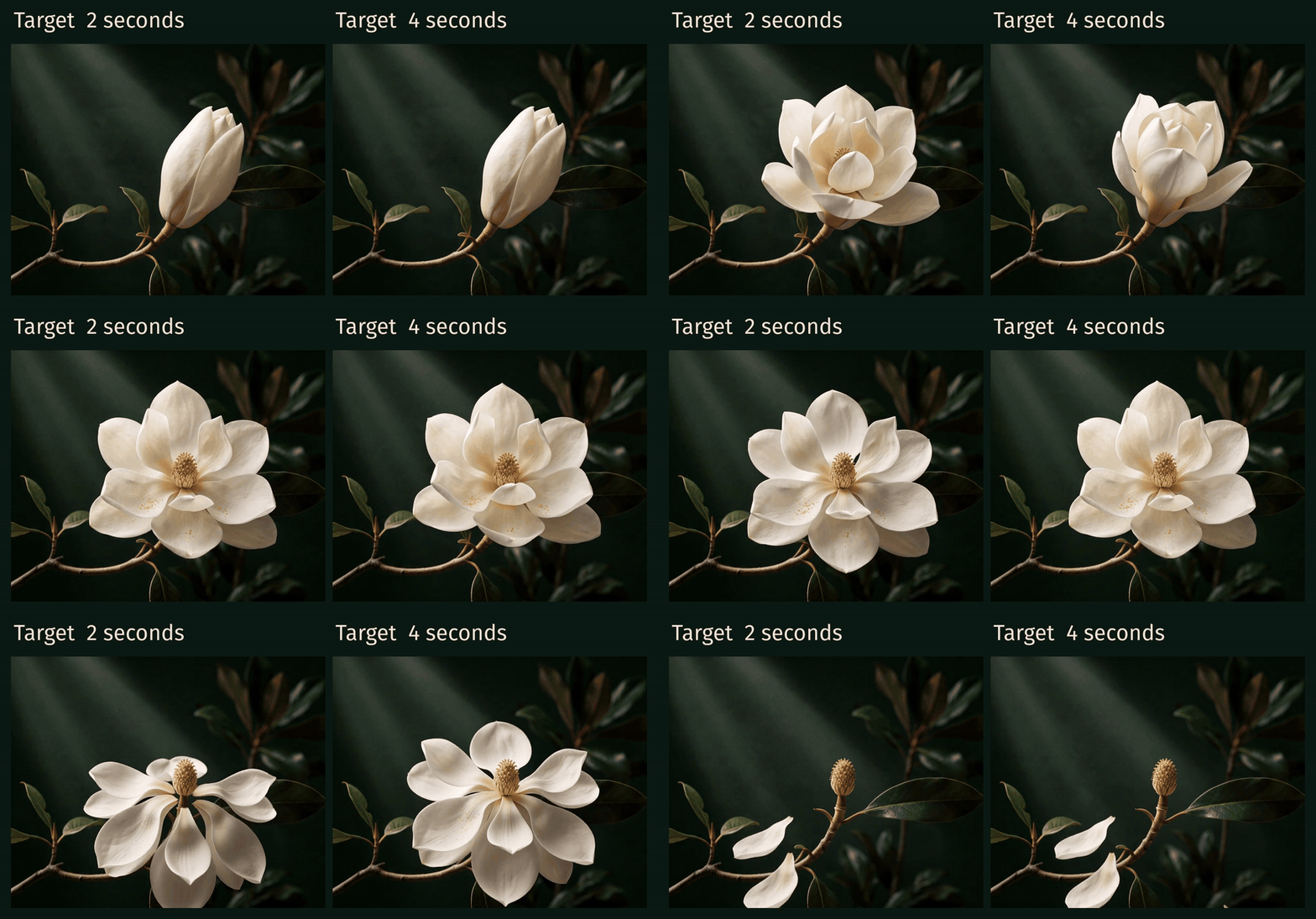
Both clips below start with the same bud and end with falling petals. One gives the open flower more time to register; the other makes the unfolding the main event. That is a useful choice when a six-second teaser has to leave an impression.
First, middle and last image controls let you direct three states of an AI video. We used them for a fictional Midnight Conservatory exhibition teaser: a closed magnolia, an open flower, then falling petals. Changing one timing setting gave the same scene a different buildup.
Design three states of the same scene
Start with the picture you most want people to remember. Our middle image is an open ivory magnolia against dark green leaves, generated with Nano Banana 2. We edited that image into the opening bud and the ending with fallen petals. The camera, branch and light stay recognizable across the set.
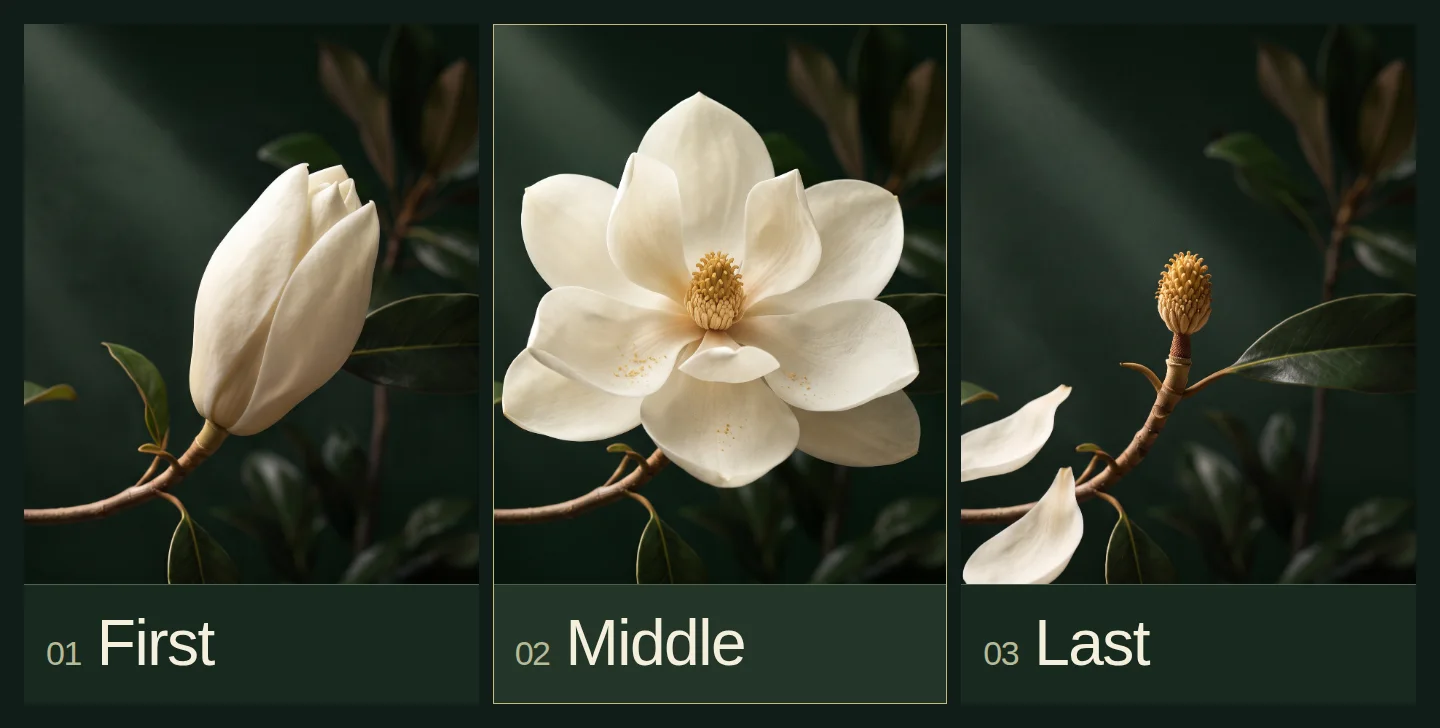
For your own reveal, make the three images answer different questions:
- First: What does the viewer see before the change?
- Middle: What is the important state you want to reach?
- Last: Where should the shot leave us?
Keep exact titles and logos out of these images. Put them in your editor afterward, where their spelling and timing remain under your control. This approach suits an exhibition invitation, a campaign teaser or a visual transition between two parts of a presentation.
Set a middle frame, then change its time
fal announced first, middle and last frame controls for H3 Max on October 2. Use its reference-to-video mode and supply the open flower as a subject reference as well as the middle anchor.
Our settings were:
| Control | Value |
|---|---|
| First image | Closed magnolia bud |
| Middle image and subject reference | Open magnolia |
| Last image | Golden center with falling petals |
| Requested duration | 6 seconds |
| Resolution | 768P |
| Middle-image target | 2 seconds, then 4 seconds |
| Seed | 27631 |
| Prompt expansion | Disabled |
The current endpoint schema requires first and last images when using a middle image, and supports middle guidance at native 480P or 768P. Its time must fall inside the clip and rounds to a frame at 24fps.
Here is the exact motion prompt, used for both takes:
Image 1 is the magnolia subject and its moonlit botanical style. A single fixed macro shot of an ivory magnolia in a dark moonlit conservatory. The closed bud gently unfurls into the fully open blossom shown by the middle image, then the petals detach and drift gracefully downward until only the golden center remains as shown by the last image. Organic, continuous tactile petal movement. Keep the branch, leaves, camera, framing and background steady. No cuts, no camera move, no text, no new objects. Treat the images as the three successive states of this same flower.
Change only the middle-image time for the second take. Keeping the images, prompt and seed fixed makes the comparison easier to interpret.
A target state is not a stopwatch
The two-second take unfolded faster. The four-second take spent longer opening, but it was already visibly open before four seconds. It held that state rather than saving the entire reveal for the requested instant.
That distinction matters: the middle image guides a state at a time; it does not specify the first moment that state may appear. Use it to shape anticipation and release. If a logo must appear on one exact frame, animate the logo separately.
Both requests returned 158 video frames at 24fps, about 6.58 seconds. Check the output length before dropping it into a six-second slot. Trimming the tail can remove the last petals; speeding up the whole clip also moves the reveal earlier.
Compare the beginning, the open-flower hold and the exit together. For this teaser, the earlier target gives the open blossom more time to register. The later target makes the unfolding itself more prominent. Choose the part of the action your message needs.
Compare the takes together in Voyager
Watching one clip, closing it and opening the next makes small timing differences harder to judge. Voyager's native Video tool can open both files in a synchronized comparison view with a shared playhead, side-by-side and wipe modes, and a recorded choice.
Open the two magnolia takes in Voyager Video's synchronized compare view, side by side. Label them Early target · 2s and Late target · 4s. Let me scrub both with one playhead and choose a take. Keep the source files unchanged; do not generate another video.
The agent opens an interactive comparison from the actual files. One playhead keeps the timing aligned, and the submitted choice tells the agent which take to use next. There is no comparison edit to assemble before making the decision.
Download the three anchors, both full-frame takes and exact prompts. Unzip the folder together; index.html plays the comparison locally. The kit also includes portable generation parameters and a command to open the takes in Voyager Video.
Direct the moment that carries the idea
For Midnight Conservatory, we chose the earlier target: the open blossom gets a longer hold before the petals fall. For a teaser about transformation, we would favor the slower unfolding.
Try the same experiment with your own reveal: make three clear states, generate two timings and compare the moment your audience should remember. Use the middle frame to shape that moment; keep frame-exact titles and logos in the editor.
Make your next project in Voyager
Create an account, download Voyager, and start making.