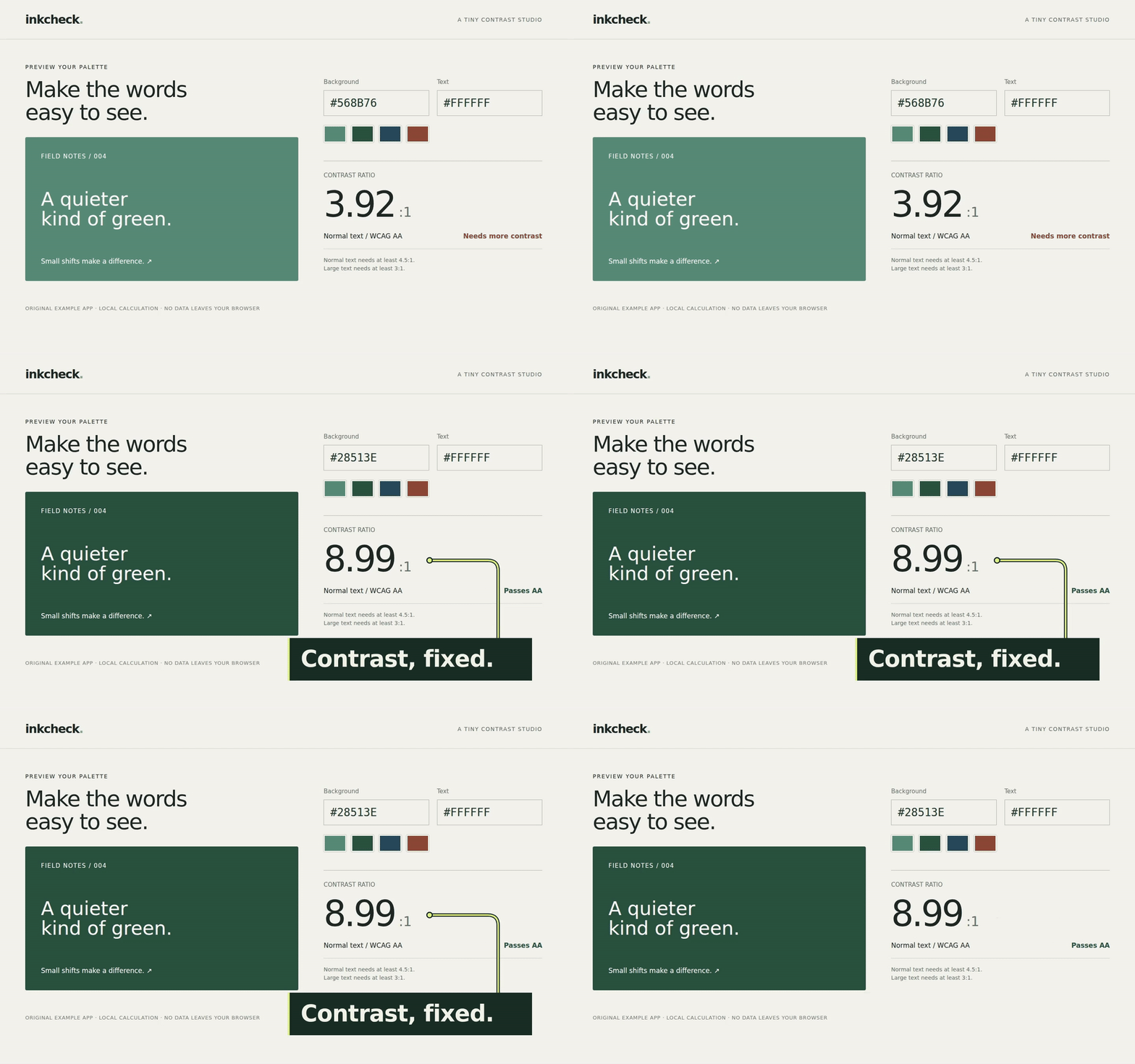
Cutting two seconds from a demo can leave a perfectly timed callout two seconds late. Attach it to the action, and the next cut keeps them together.
Start with one action worth explaining
Creators are already using coding agents to add motion graphics over real video, and to place B-roll against transcript timing. An onboarding video or feature announcement also needs those annotations to survive the next trim.
Our recording shows a contrast checker changing from a soft green to a darker green. The result changes immediately. A single label, “Contrast, fixed.”, points at that result.
Pick a clear event: a chart updating, a filter revealing a record, or an export finishing. Record at a fixed window size and leave space for the annotation.
Give your coding agent this prompt with the recording:
Add one animated callout to this screen recording. Find the frame where the result changes after the click. Show “Contrast, fixed.” beside the result, with a thin connector that draws toward it. Keep the result visible.

Use a quick, gentle entrance and a readable hold. No bounce, flashing highlights or extra headline cards. Keep the callout editable and separate from the recording. Record its timing relative to the action clip, so shortening the intro doesn't leave the annotation behind.
Describe the event before the styling. “At six seconds” is convenient for the first cut; “when this result changes” tells the agent what the timing means.
Give the annotation its own clock
We made the callout in Remotion and rendered it with transparency. The label slides into view and the connector draws toward the number. The recording remains untouched. Remotion documents transparent renders if you're bringing the overlay into another editor.
The callout needs an offset from its action clip, not an independent timestamp. In our edit, removing two seconds means moving both starts back 60 frames:
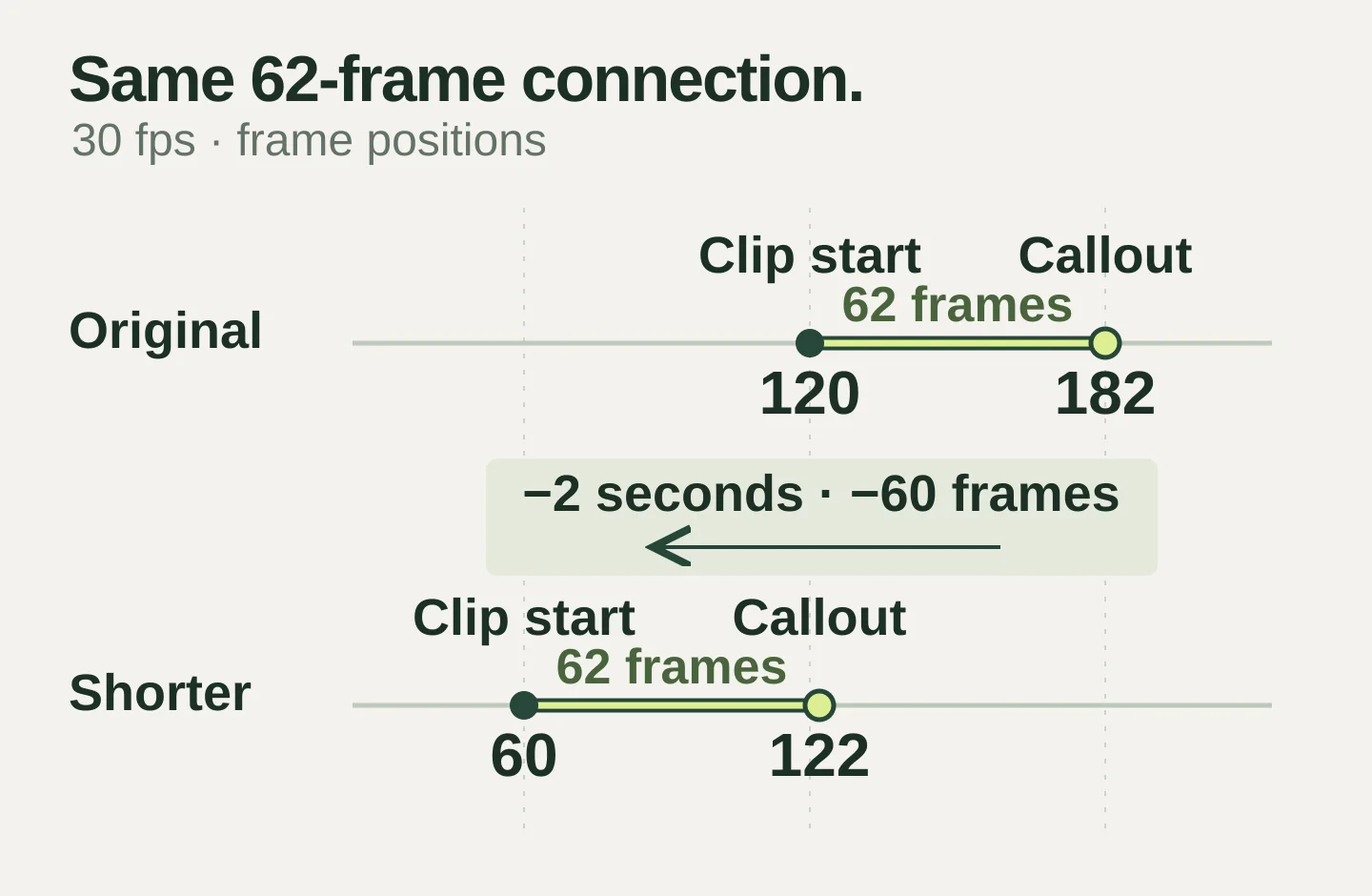
You can use the same idea in another timeline editor by connecting the annotation to its source clip. In a code-based video, nest the action and its callout in a shared timing container; Remotion's nested sequences provide relative clocks.
This is a timing attachment, not motion tracking. If the button moves around the screen, its connector needs position keyframes or tracking too.
Make the revision in Voyager
Voyager's native Video engine can attach an overlay clip to a parent clip. We imported the recording and transparent animation, split off the intro, and attached the callout to the action that follows.
Use this revision prompt with the download:
Make a shorter copy of original.vvideo. Shorten its intro by exactly two seconds with a ripple trim. Keep the action clip and its attached callout together. Don't regenerate the animation or burn it into the recording.

Show the timeline diff, then render the revised cut. Check that the result change and callout still line up, and preserve the original edit for comparison.
Description / transcript
Voyager shows the two-second ripple trim and a table of changed clip positions. The revised screen recording plays, then expands for a closer look at the attached callout.
We disabled sync lock on the overlay track to check the attachment itself. The callout still moved 60 frames earlier with its parent clip. The timeline diff confirmed that both source ranges stayed unchanged.
Codex or Claude can build this relationship in a video project too. Voyager supplies the native timeline commands, saved edit history and playback alongside the conversation, so the request can operate on the existing edit directly.
Review the second cut
Scrub the moment before the action, the first changed frame and the fully visible label in the shortened export. Then view it at reading size: a full-screen annotation can become unreadable inside a help article.
If you cut into the action itself, change its speed or remove the event, inspect the attachment again. An attachment preserves a timing relationship, not the meaning of every possible edit.
Download the recording, animated overlay, editable projects and prompts. The example app runs locally by opening its HTML file; the README covers rendering and relinking the video project.
Keep the annotation tied to the moment it explains. Then “make the intro shorter” can stay a small edit.
Make your next project in Voyager
Create an account, download Voyager, and start making.