Description / transcript
This reel was cut, captioned and finished in Instagram Edits using Voyager, with one prompt. Here's how to set it up. Connecting Instagram Edits takes about a minute. Before you start, make sure Edits is installed on your Mac and you're signed in to Instagram. If you don't have it yet, Voyager can install it for you. In Voyager, open Apps & Models in the sidebar. Voyager has already found Edits. Click Set up. There's one setting to turn on first. In Edits, open Settings, then Automation, and turn on Enable Automation Server. Then copy the access token. Keep that token to yourself. Back in Voyager, paste the token and click Connect. Now it says Connected. That's it, it's all connected. Edits is Instagram's own video editor, used by creators to cut, caption and finish reels. So let's make one: a 30-second summary of the upcoming GTA 6 game by Rockstar. In Voyager, start a chat. Click Instagram Edits under the prompt box, or type an at sign and pick it. Then tell it what you want. Hit send, and let it work. First, Voyager will download the two official trailers and pick a shot to match each line of the voiceover. While it does, Edits is waiting with a new, empty portrait project. Then Voyager will build the edit in Edits. It brings in fifteen shots and the voiceover, and puts a transition on every cut. Next, it uses Edits' own captions, so every word lights up as it's spoken. And that's the reel: thirty seconds, portrait, ending on the logo. Voyager exports it, checks the file and tells you what it did. Nothing gets posted unless you ask. Everything is now yours to change. Open the project in Edits and adjust it by hand, or just ask Voyager. We asked for music like the trailer's, and it added a track from Edits' own library, under the voice. Then: when it says Jason, let's focus on Jason. And it reframed that shot. And that's it. Instagram Edits is connected to Voyager, and you've made your first reel. Follow for more.
Watch this tutorial on YouTube.
Connecting Instagram Edits to Voyager takes about a minute: you turn on one setting in Edits and paste a token into Voyager. Once it is connected, you can describe a reel in plain words and Voyager builds it in Edits, with Edits' own captions and transitions, ready for you to adjust.
What you need
- Voyager, installed and set up.
- Instagram Edits on a Mac with Apple silicon and macOS 15.1 or later, and signed in to Instagram. If it is not installed yet, Voyager can install it for you from Instagram's site, or you can download it yourself.
- Edits open while you work. Voyager talks to it while it is running.
Find Edits in Apps & Models
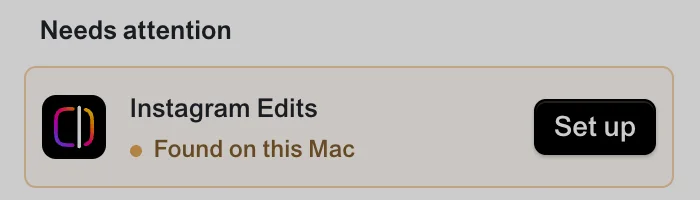
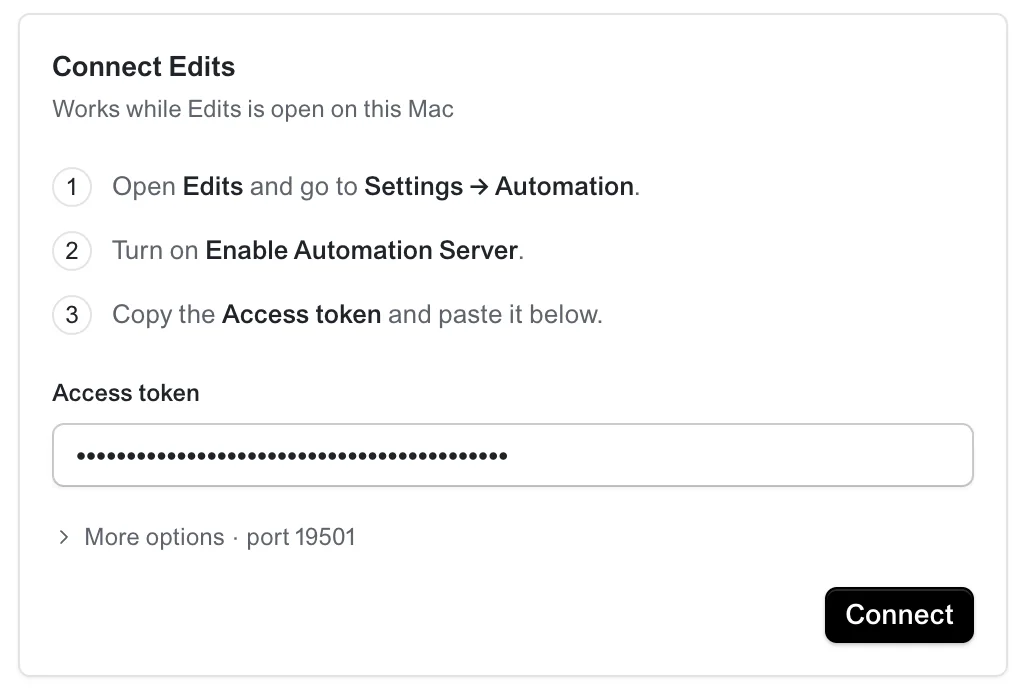
Open Apps & Models in Voyager's sidebar. If Edits is on your Mac, Voyager has already found it and lists it under Needs attention. Click Set up.
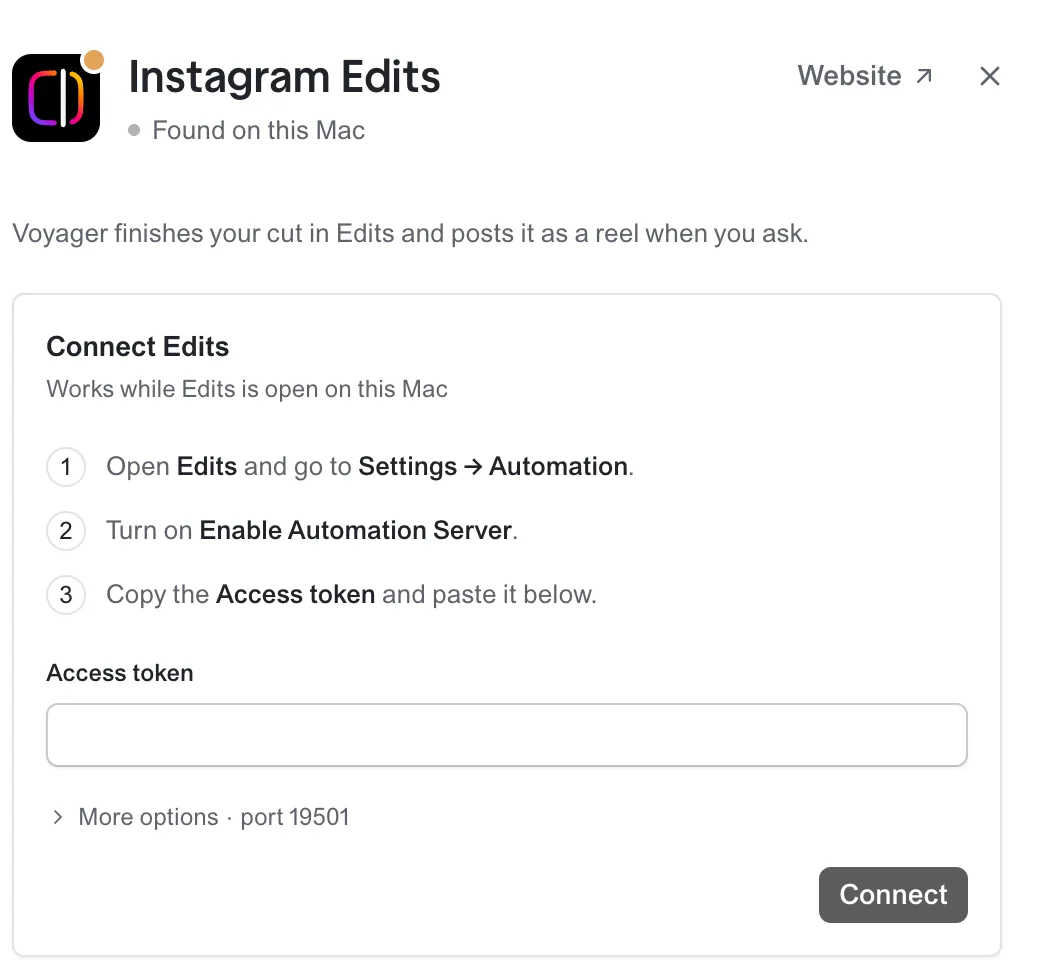
The panel lists the three steps.
Turn on the automation server in Edits
In Edits, open Settings and choose Automation. Turn on Enable Automation Server.
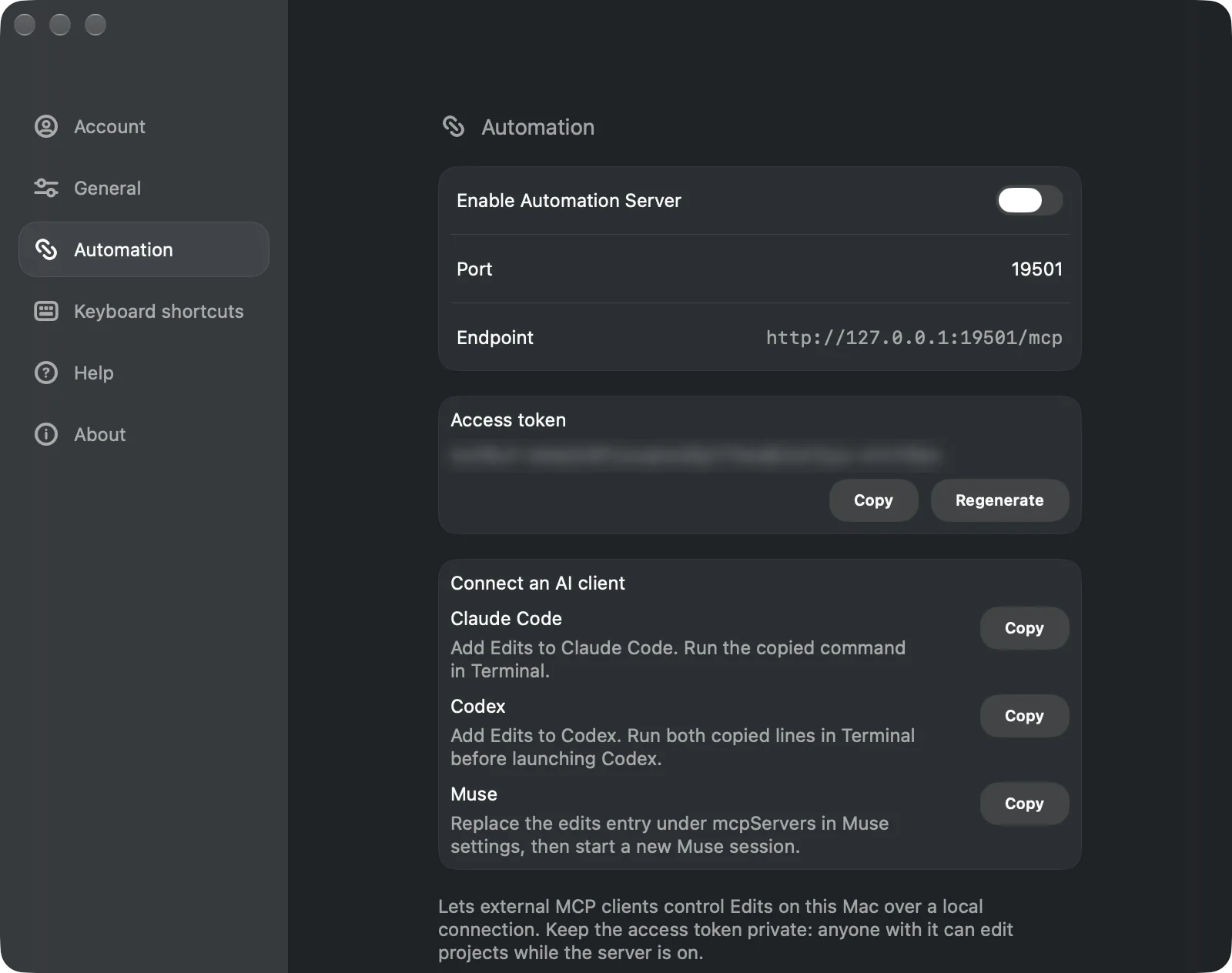
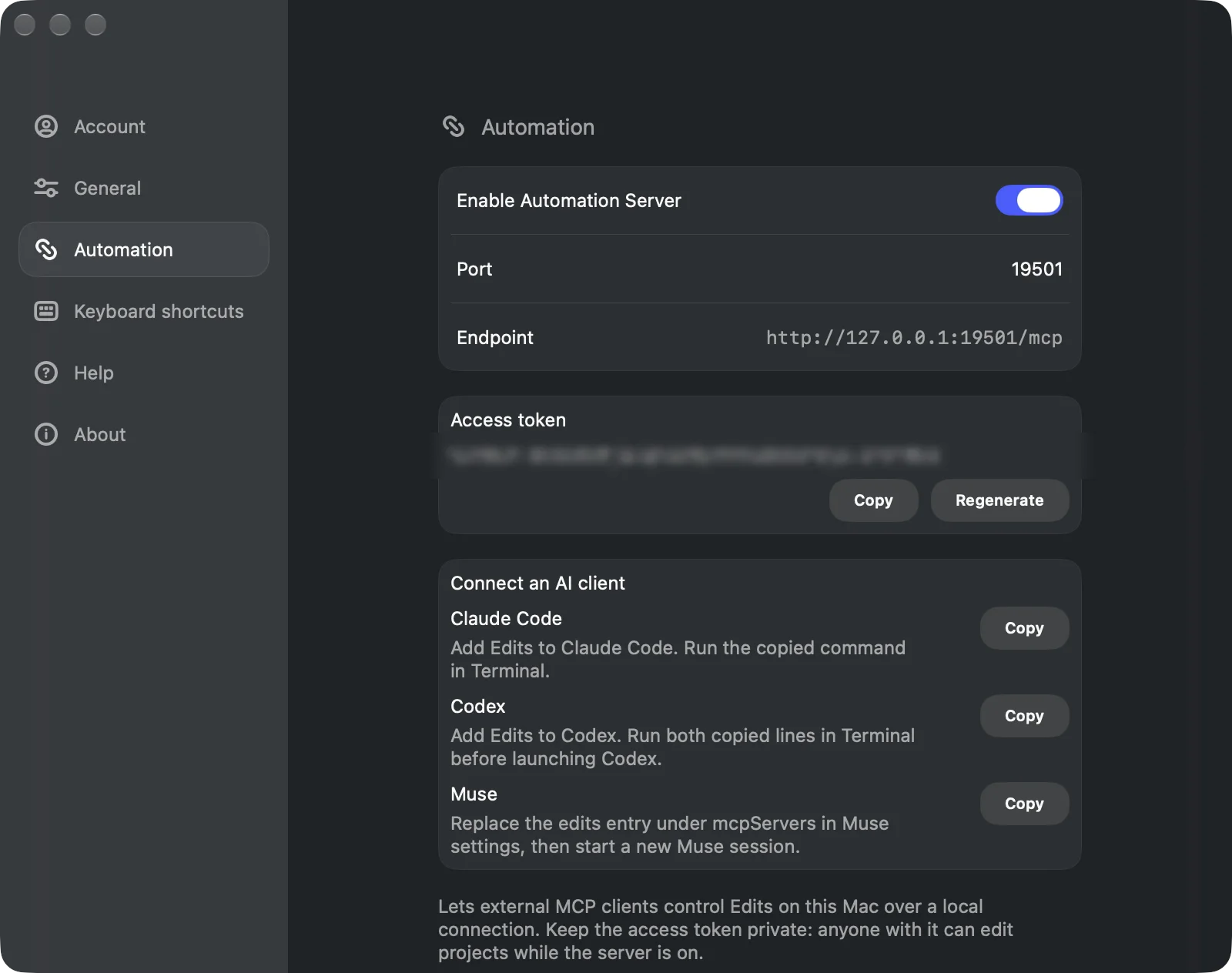
Then click Copy next to the Access token. Keep the token to yourself: as Edits notes on the same page, anyone with it can edit your projects while the server is on. If it is ever exposed, click Regenerate and paste the new one into Voyager.
Paste the token and connect
Back in Voyager, paste the token into Access token. It shows as dots. Click Connect.
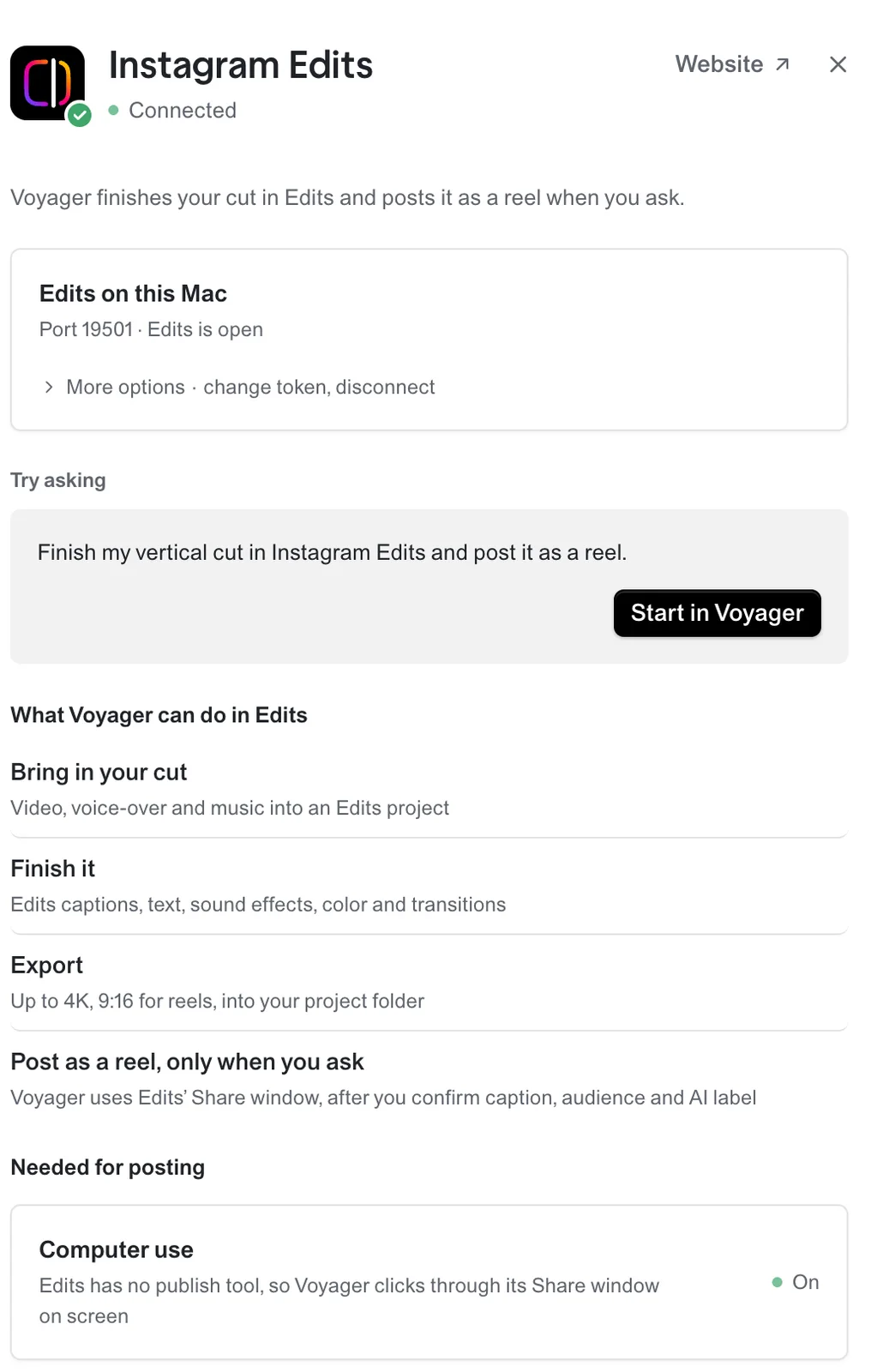
The panel switches to Connected. That's it. It's all connected.
Make a reel
Edits is Instagram's own video editor, used by creators to cut, caption and finish reels. So the first test is a reel: a 30-second summary of the upcoming Grand Theft Auto 6.
In Voyager, start a new chat. Click Instagram Edits under the prompt box, or type @ and pick it, so the chat knows which app you mean. We also attached a voiceover we had recorded. Then say what you want:
Make a 30-second portrait video summarizing the upcoming GTA 6. Gather clips, cut them to my voiceover, and put them on a timeline in Instagram Edits. Use Edits' captions for the voiceover and add transitions between the clips. Export it at 9:16. Don't post it.
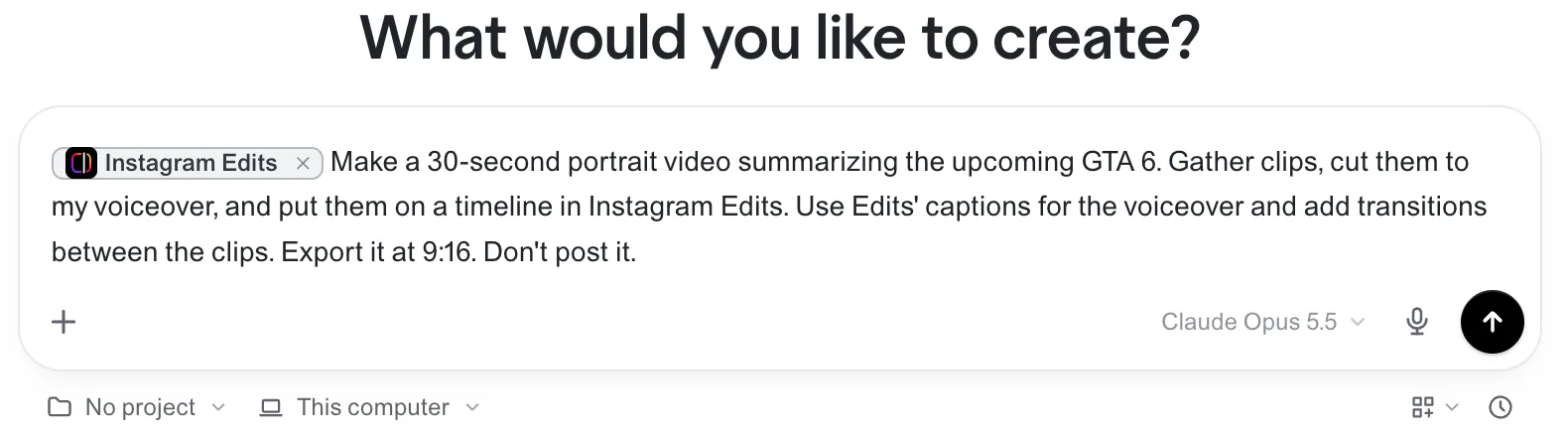
The last sentence matters. Voyager only posts to Instagram when you ask, and even then it shows you the caption, audience and AI label to confirm first. Saying "Don't post it" keeps the first test to an export.
What Voyager does in Edits
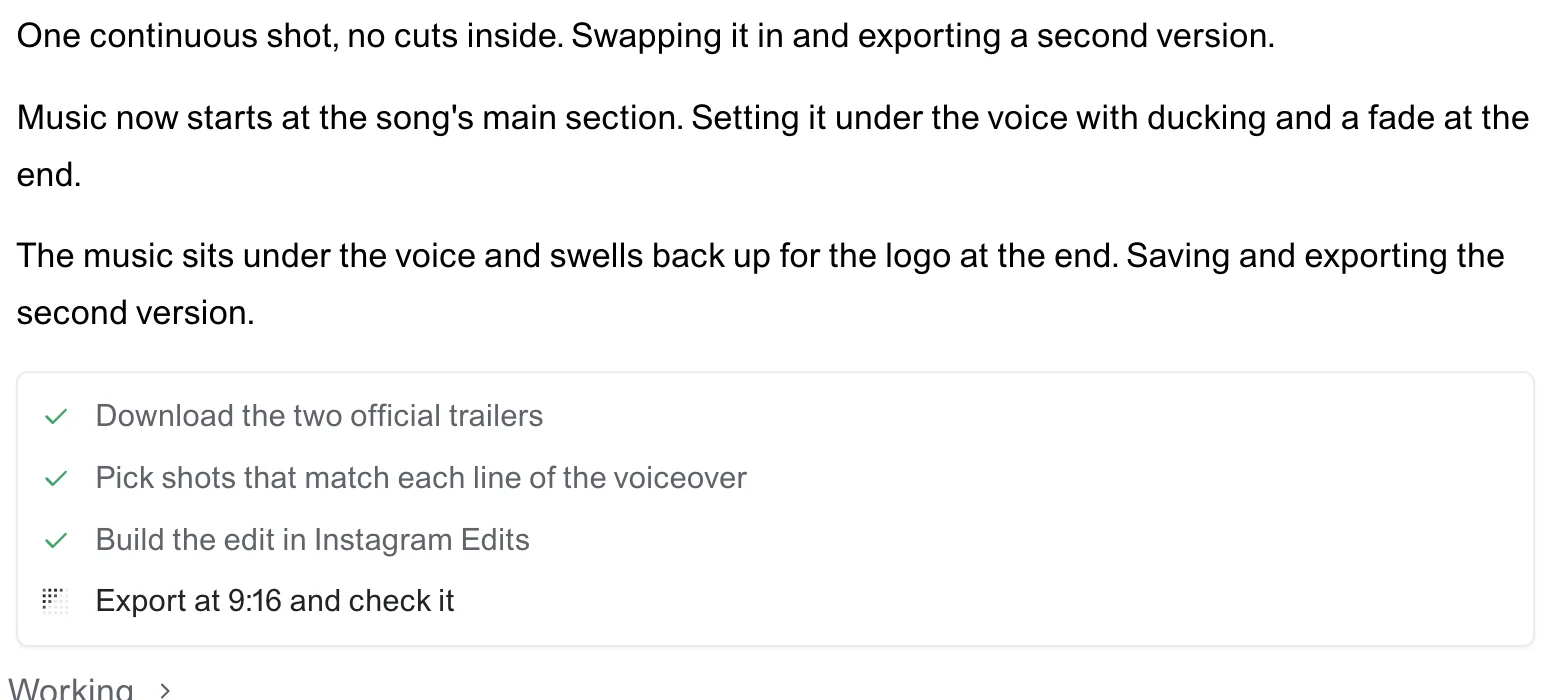
First, Voyager gathers the footage. Here it downloaded the two official trailers and picked a shot to match each line of the voiceover. While it does, Edits waits with a new, empty portrait project.
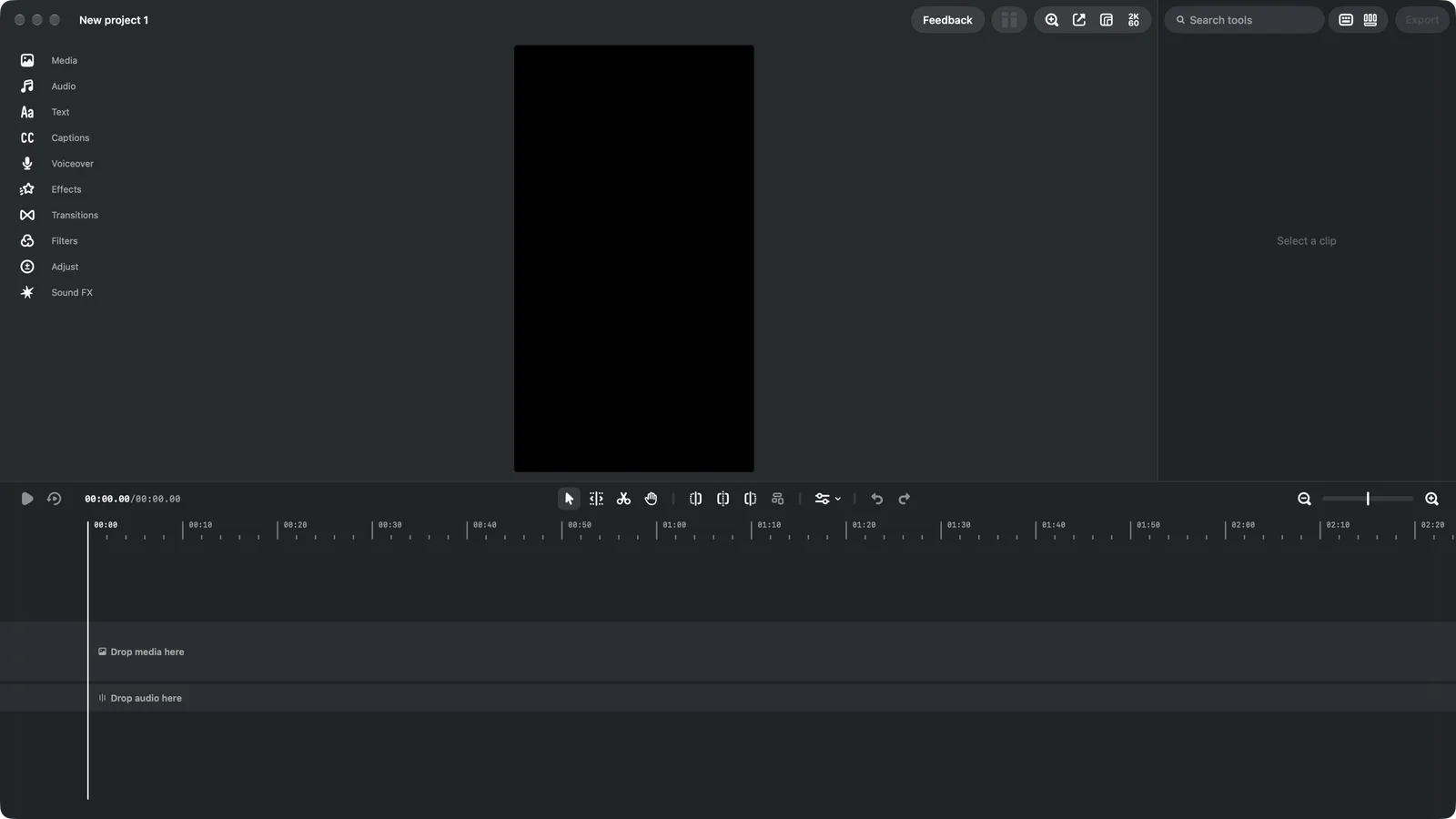
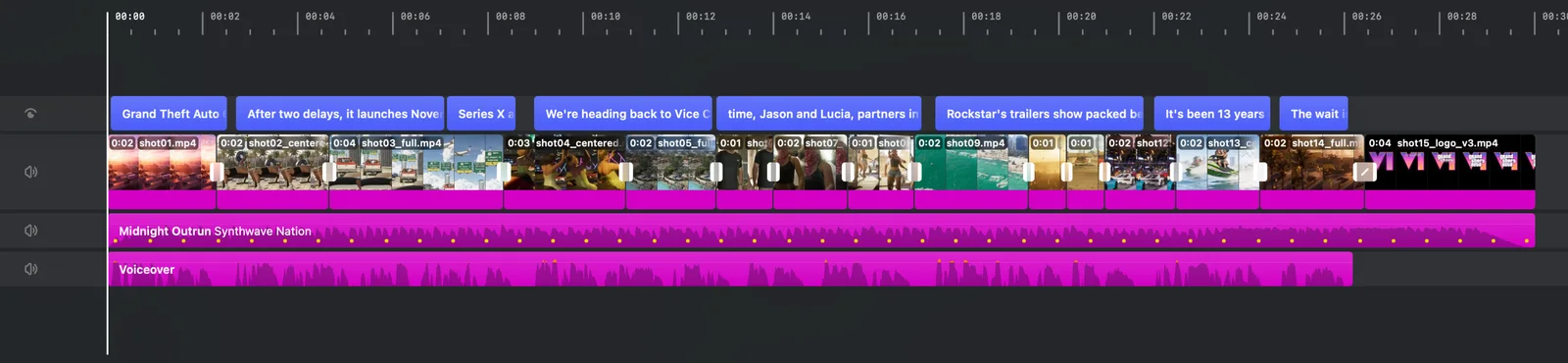
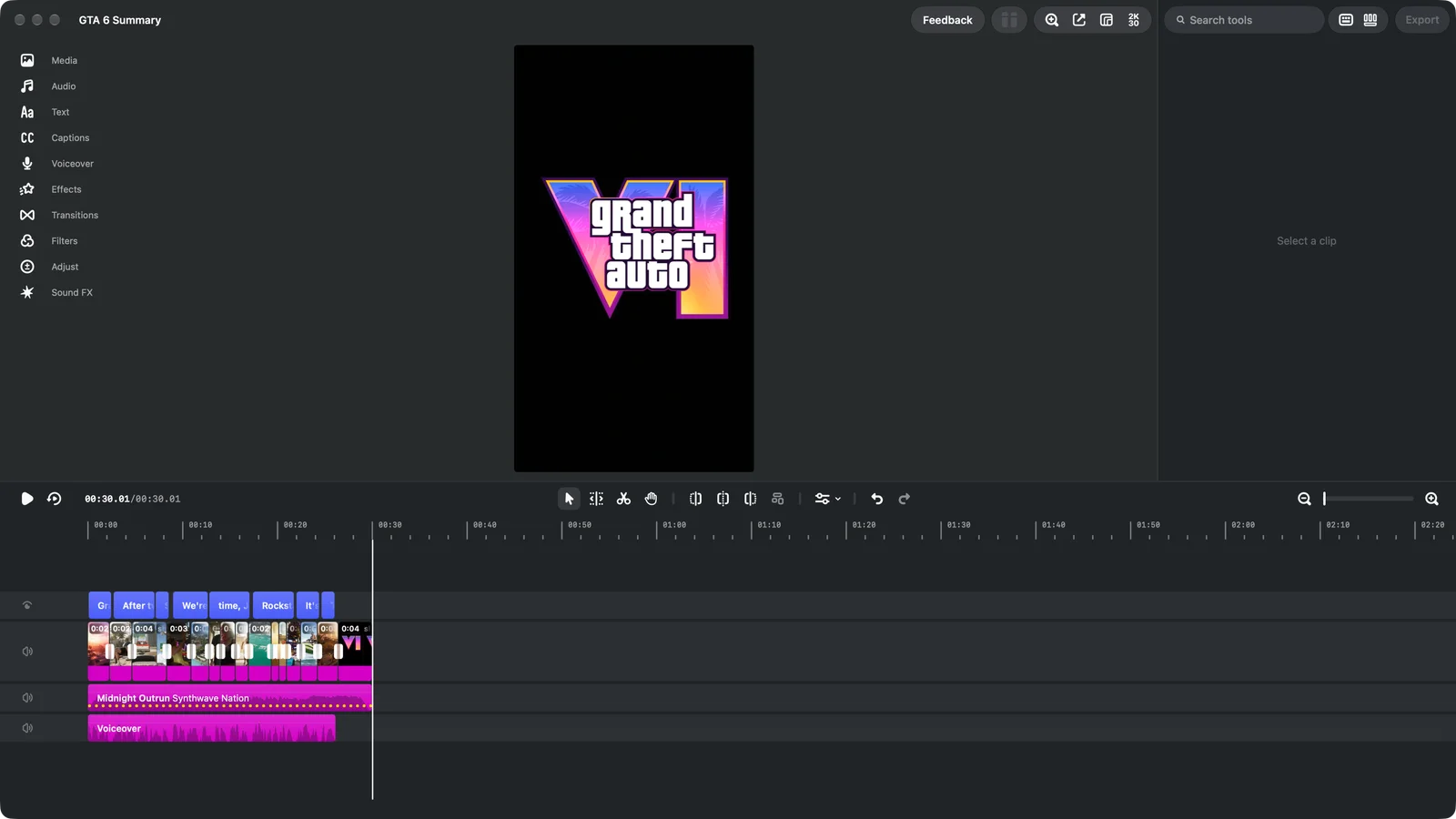
Then it builds the edit in Edits. It brings in fifteen shots and the voiceover, and puts a transition on every cut. Next, it uses Edits' own captions, so every word lights up as it is spoken.
Voyager keeps you posted as it goes, with a checklist of what is done.
When it is done, the project is saved in Edits at 30 seconds, ending on the logo, and Voyager exports the reel and checks the file. Editing happens through Edits' automation server, not by taking over your screen, so you can keep using your Mac while it works.
In our run the first export took about ten minutes.
Change it
Everything is now yours to change. Open the project in Edits and adjust it by hand, or just ask Voyager.
We asked for music like the trailer's:
Let's put in an audio track that is similar to the music in the ad.
Voyager added a track from Edits' own music library under the voice, lowered it while the voice speaks and brought it back up for the logo. Then:
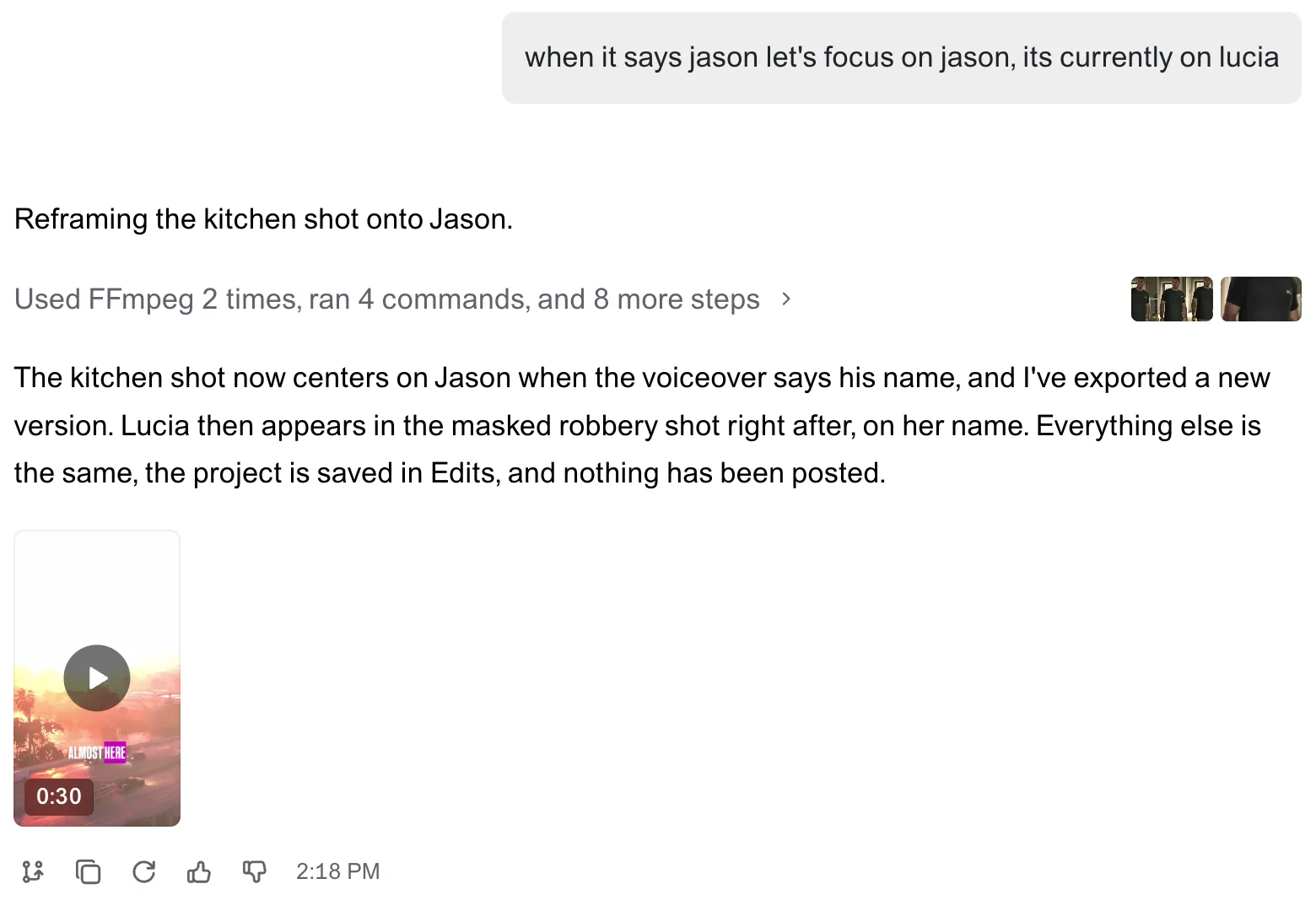
When it says Jason, let's focus on Jason.
It reframed that shot onto him, exported a new version and saved the project. Nothing was posted.
If something doesn't work
- Edits is not listed. Install it, then open Apps & Models again. Voyager can install it for you from the Instagram Edits panel.
- "Edits isn't answering". Edits is closed, or the automation server is off. Open Edits, check Settings > Automation, then click Check again.
- "Edits didn't accept the token". The token was changed or mistyped. Copy it again from Settings > Automation and paste it into Voyager.
- Posting. Voyager posts through Edits' Share window on screen, and only after you confirm. That needs Computer use turned on in Voyager.
The finished reel
Here is the reel after both follow-ups, exported from Edits at 9:16.
Description / transcript
Grand Theft Auto 6 is almost here. After two delays, it launches November 19th on PlayStation 5 and Xbox Series X and S. We're heading back to Vice City, in the state of Leonida, with two leads this time: Jason and Lucia, partners in a job that goes wrong. Rockstar's trailers show packed beaches, swamps, back roads and neon. It's been thirteen years since GTA 5. The wait is nearly over.
The clips in this example come from Rockstar Games' official trailers, and the music from Edits' library, which is licensed for use on Instagram. Check the rights to any footage and music before you post.
Voyager is a desktop AI agent for creative work
Describe what you want to make; Voyager plans it, uses your apps and tools, and keeps everything editable.