AI agents connected to After Effects and Blender can create and modify native project elements instead of only returning rendered video clips. With compatible scripting and application connections, an agent can build editable compositions, layers, scenes, and keyframes from natural-language instructions. The results still need review, and generated media placed inside these projects may remain rendered footage.
This distinction matters for professional workflows. A rendered video can be trimmed or composited, but its underlying objects and animation controls are not automatically available as separate layers. An editable project handoff gives you a starting point to adjust, extend, and share with collaborators using the same creative software.
The short version: Voyager is a desktop AI-agent harness for creative production that connects supported agents with After Effects, Blender, and other creative applications. It can use its bundled After Effects scripting connection to work with compositions and its Blender Python workflow to build and revise 3D scenes. An external MCP server is not required for these two built-in routes, although Voyager also accepts MCP integrations for additional tools and services. As one of the creative agent harnesses designed for connected production, Voyager brings AI-assisted work into established editing environments.
Key takeaways
- Native elements stay editable: Compatible agents can create native After Effects layers and Blender objects, allowing an editable project to preserve animation elements beyond rendered footage.
- Scripts need validation: Agents can draft After Effects expressions and Blender Python, but code and project state need checking, particularly when using After Effects MCP connections.
- Voyager supports app-level workflows: Its documented After Effects and Blender connections use scripting and Python, with optional MCP support across creative app integrations.
The quality of the result still depends on prompt specificity. State the required file, composition or scene, dimensions, frame rate, timing, colors, object names, and what must stay editable. Treat an initial output as a draft that needs preview, validation, and targeted revision rather than assuming every action succeeded.
Sources: Adobe’s scripting, expressions, and release documentation and Blender’s Python API documentation, read 17 November 2026. Voyager, the desktop app our team builds, connects supported agents to After Effects scripting and Blender Python workflows.
What AI animation agents actually do
AI animation agents translate natural-language requests into actions supported by creative software. For a bouncing ball animation, a compatible After Effects connection can create a composition, add a shape layer, set position keyframes, and apply easing. In Blender, an agent can use Python to create objects, assign materials, insert keyframes, and render a preview. The scope depends on the application's automation interfaces and the permissions available to the agent.
Native file control vs. video generation
The core difference is what remains editable after the task. A rendered video is a sequence of images, even when it can be cropped, recolored, or composited. A native After Effects composition can retain text, shapes, effects, and keyframes. This composition-first approach distinguishes After Effects from Premiere, where sequence-level editing is the primary workflow. A Blender scene can retain geometry, materials, lighting, cameras, and animation data. Importing an AI-generated clip into either project does not convert the clip's source content into independent layers or 3D objects.
Voyager works at the project level where a supported application exposes the necessary controls. After Effects uses its scripting interface, while Blender uses Python. MCP (Model Context Protocol) can also connect compatible agents to tools, but each MCP server has its own capabilities, setup, and permissions.
This means you can, when the connection supports the action:
- Adjust keyframe timing after generation
- Change colors, fonts, materials, and positions manually
- Add agent-built elements to existing projects
- Export using formats and render templates supported by the application
Supported software and connection methods
Voyager's creative app integrations cover different automation routes rather than one universal plugin. Its approach to desktop motion graphics combines agent assistance with editable outputs inside established creative applications. For After Effects and Blender, the relevant methods are:
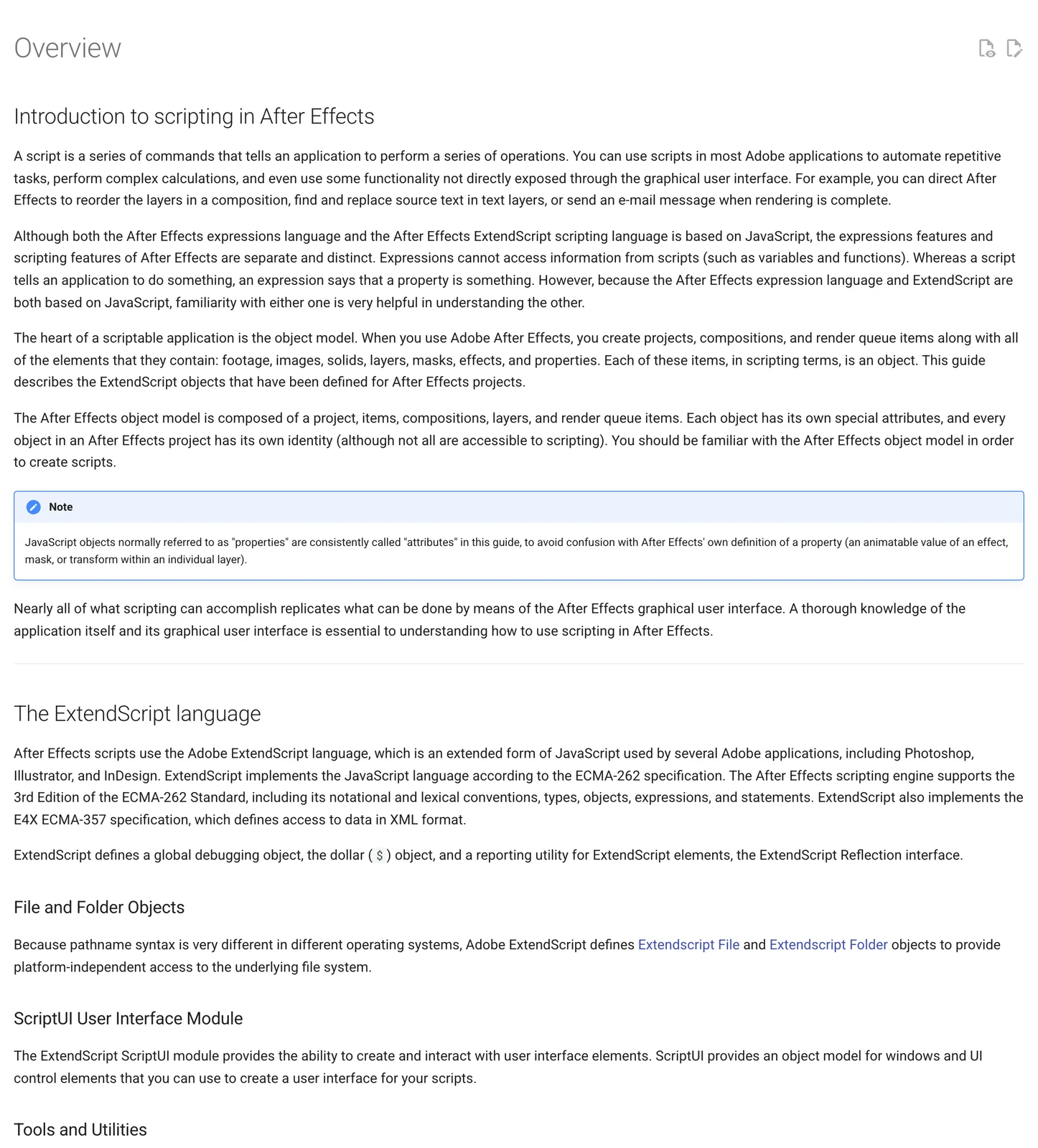
- After Effects: Voyager can inspect a project, execute supported ExtendScript (JSX) operations, preview frames, and save or render compositions through its bundled scripting connection. After Effects must be installed and licensed, and scripting permissions must be enabled.
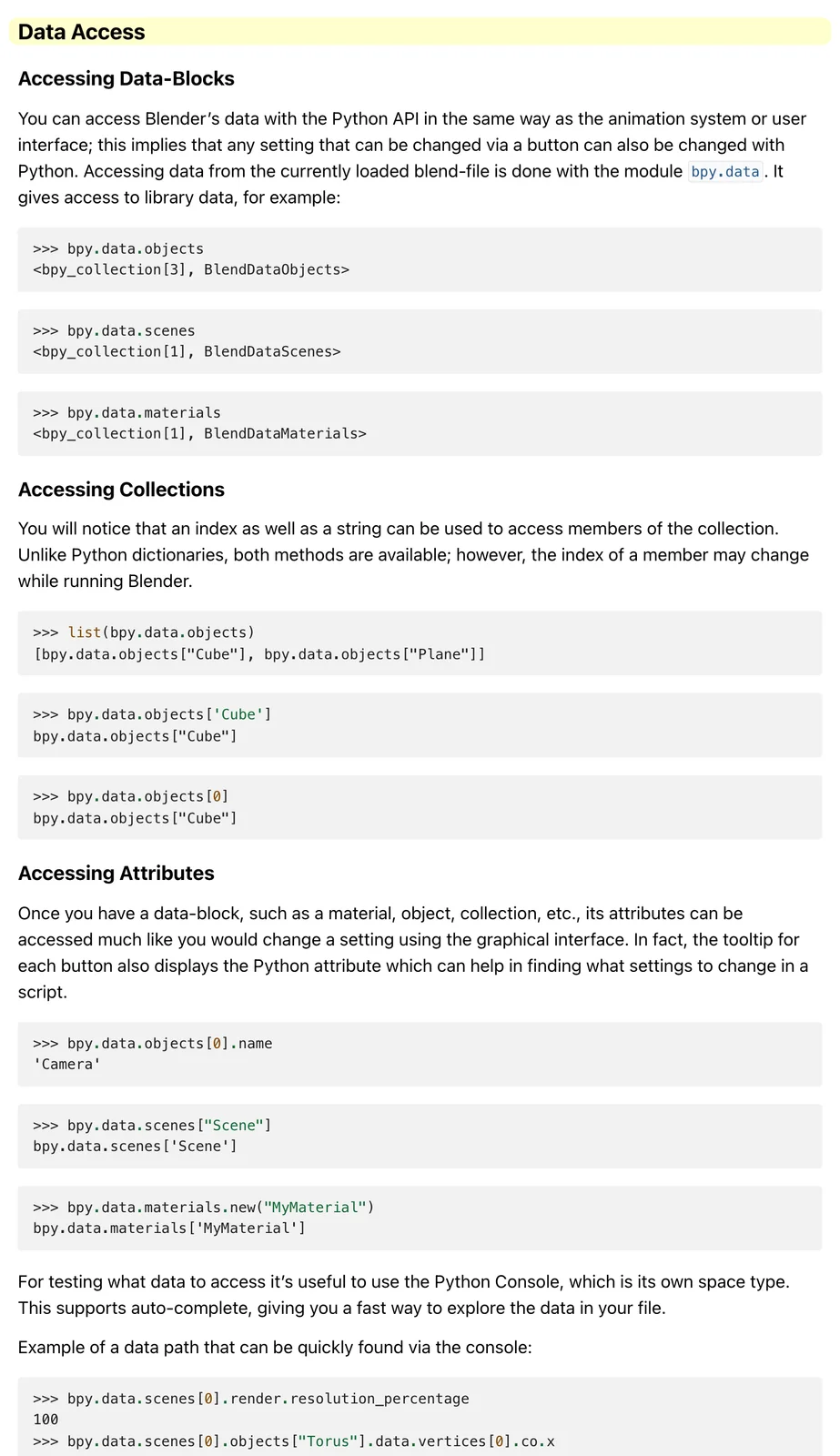
- Blender: Voyager can run bpy Python scripts in an installed Blender application to create objects, set up lighting, animate properties, and render previews. Its built-in Blender route does not require a separate add-on or MCP server.
- MCP integrations: Voyager can connect additional local or remote MCP servers from its integrations settings. These extend the tools available to an agent, but do not guarantee control over every feature of an application.
- Agent runtimes: Voyager supports its own agent and supported Claude Code or Codex workflows. Authentication, API billing, permissions, and availability depend on the configuration selected for the creative agent workflow.
After Effects 2027 (version 27.0) also includes Adobe's own AI Assistant for supported in-app tasks. That assistant is separate from Voyager's scripting connection and has its own access and credit conditions. Voyager runs on Apple silicon macOS, Windows 11 (x64), and Linux (x64), and the precise creative-app controls available vary by platform.
Prompt anatomy for After Effects agents
The quality of an After Effects automation result depends on the detail the agent receives and the actions its connection can perform. Prompts should identify the composition, editable elements, animation timing, and expected saved output rather than relying on a broad style description. Voyager's After Effects integration supports script-based composition work, making specific technical instructions especially useful.
What makes a prompt work
A strong After Effects prompt includes:
- Composition specifications: Resolution, frame rate, duration
- Object definitions: Layer type, size, color values (hex codes are precise)
- Animation parameters: Start and end values, timing, easing type
- Layer naming: Explicit names for later edits and expression references
Weak prompt
Create a blue circle animation
Strong prompt
In After Effects, create a new composition named 'Circle_Intro' at 1920×1080, 30fps, with a 5-second duration and transparent background. Add a 200px diameter ellipse shape layer filled with #0066FF, with no stroke, centered at position (960, 540). Name the layer 'circle_main'. Animate its scale from 0% at frame 0 to 100% at frame 30 using ease-out interpolation. Keep the circle visible for the remaining duration. Use native After Effects properties without third-party plugins, preserve editable keyframes, and save the composition in the project.
The strong prompt gives the agent values to implement, specifies composition duration and background, defines hold behavior, and sets implementation constraints. The weak prompt leaves resolution, exact color, animation type, and timing unspecified. Before running it, confirm the agent can write to the project and create a saved version.
Reusable lower-third animation
Lower thirds are useful for interviews, tutorials, and branded content because the same motion can be reused with different names and titles. Voyager can help build native text and shape layers through its supported After Effects scripting workflow.
Prompt pattern
In After Effects, create a reusable lower-third composition named 'Lower_Third_Template' at 1920×1080, 30fps, with a 5-second duration and transparent background. Add editable text layers for 'Ana Ruiz' and 'Creative Director', using a clear two-level typography hierarchy. Create a rounded rectangular background behind the text with #003366 fill and 80% opacity. Position the lower third in the bottom-left safe area, 100px from the left and 120px from the bottom. Animate the group sliding in from 150px left of its final position between frames 0 and 18, using ease-out interpolation. Hold the completed layout through frame 120, then animate it out between frames 120 and 149. Keep all text, shapes, and keyframes editable. Group related layers with clear names, preserve a separate template composition, and render a transparent preview.
The prompt defines layout, hierarchy, animation timing, and reusable components. Once the template is approved, the agent can duplicate it and replace the text without rebuilding the motion system.
Expression writing and debugging
One practical use for After Effects agents is drafting JavaScript-based expressions that control layer properties. Expressions require correct syntax and references to the right properties. After Effects scripts use ExtendScript, which is not the same environment as the application's modern expression engine, so the agent must use the appropriate syntax for each task.
When an expression fails, copy the exact error message into a follow-up prompt. Ask the agent to check the named layer, property path, and expression syntax, then apply only the corrected expression. Review the resulting animation rather than assuming the absence of an error means the motion is right.
Common expression tasks include:
- Wiggle expressions with specified frequency and amplitude
- Time-based animations linked to composition duration
- Property relationships between parent and child layers
- Slider control connections for adjustable parameters
Kinetic typography animation
Kinetic typography combines text timing, movement, and visual hierarchy to emphasize a message. Voyager can use supported After Effects scripting actions to construct text layers and animate their properties, keeping the wording editable for later revisions.
Prompt pattern
In After Effects, create a 6-second kinetic typography composition named 'Kinetic_Headline' at 1920×1080 and 30fps. Use the phrase 'CREATE. REFINE. DELIVER.' with each word as a separate editable text layer. Set the background to #101820 and the text color to #FFFFFF, with #00C2FF used only for the active word. Animate 'CREATE' entering from the left between frames 0 and 20, 'REFINE' appearing with a vertical scale reveal between frames 30 and 50, and 'DELIVER' fading and scaling into place between frames 60 and 80. Use eased keyframes and consistent typography. Hold the complete phrase from frame 90 through frame 149, then fade it out by the end of the composition. Name each layer, preserve editable text and keyframes, and render preview frames at seconds 1, 3, and 5.
This structure gives each word a defined entrance while keeping the overall rhythm controlled. It also applies to animated poster workflows, where typography, visual hierarchy, and motion work together to communicate a message.
Prompt patterns for Blender animation
Blender MCP is one way to connect agents to Blender, but Voyager can also run Python scripts directly in the installed application. Blender prompts need more information about 3D space, materials, light, camera framing, and rendering than a basic 2D motion prompt.
3D-specific prompt requirements
Effective Blender prompts specify:
- Scene setup: Camera position, lighting type, world background
- Object geometry: Primitive type, dimensions, subdivisions
- Materials: Color, roughness, metallic values
- Animation targets: Which properties animate and their keyframe values
- Render settings: Engine (Cycles or Eevee), resolution, frame range
Example prompt
In Blender, create a modern ergonomic office chair approximately 1.2 meters tall, with a black mesh backrest, dark fabric seat cushion, brushed aluminum five-star base, and five caster wheels. Organize the chair components into clearly named objects within a collection called 'Office_Chair'. Position the chair at the scene origin with the wheels resting on the floor. Add a neutral studio background, a three-point lighting setup, and a camera showing the chair from a three-quarter angle. Animate the chair rotating 360 degrees around its vertical axis from frame 1 to frame 120 at 30fps, using linear interpolation for continuous rotation. Set the render resolution to 1920×1080, use Eevee, and preserve the geometry, materials, camera, lights, and animation keyframes in the editable Blender scene.
When prompting Blender agents, describe an object's geometry, dimensions, materials, and intended movement rather than relying on abstract descriptions. Request a low-resolution preview before a full render so the scene can be checked for missing parts, clipping, and unintended motion.
Camera flythrough animation
A camera flythrough is a useful way to present an architectural scene, game environment, or product space. Voyager's Blender workflow can use Python to define camera positions, insert keyframes, and generate preview renders while preserving the editable scene.
Prompt pattern
In Blender, create an 8-second camera flythrough of a modern minimalist living room at 30fps. Build a simple interior with a sofa, coffee table, floor lamp, large window, wooden flooring, and neutral walls. Use realistic dimensions and organize the objects into collections named 'Furniture', 'Lighting', and 'Architecture'. Start the camera near the doorway at a height of 1.6 meters, move it smoothly toward the seating area, and finish with a three-quarter view of the sofa and window. Use a camera path with keyframes from frame 1 to frame 240, applying smooth interpolation without sudden changes in speed. Set up soft daylight through the window, use Eevee for preview rendering, and save the camera path, scene geometry, materials, and lighting in an editable .blend file. Render preview frames at the beginning, middle, and end of the camera movement.
The prompt establishes a clear route and framing objective. After reviewing the preview frames, you can refine camera speed, composition, and lighting without recreating the room.
Material and lighting variations
Product visualization often requires multiple treatments of the same object. Rather than generating a new scene for every variation, an agent can duplicate material configurations and lighting setups while preserving the original geometry.
Prompt pattern
In Blender, open the existing 'Product_Display.blend' scene and create three material and lighting variations of the central product without changing its geometry, scale, or camera position. Variation A should use a matte charcoal material with soft neutral lighting. Variation B should use brushed aluminum with cool studio lighting. Variation C should use a satin white finish with warm lighting and gentle shadows. Organize the variations into clearly named material sets and lighting collections, keep the original setup intact, and create separate render outputs for each. Use the same 1920×1080 resolution and camera framing across all versions. Render one preview per variation and preserve all materials, lights, and settings in the editable Blender file.
This approach makes comparison easier because the object and framing stay consistent. It also creates reusable scene settings for future product colors and finishes, supporting repeatable 3D agent workflows.
Character animation cleanup
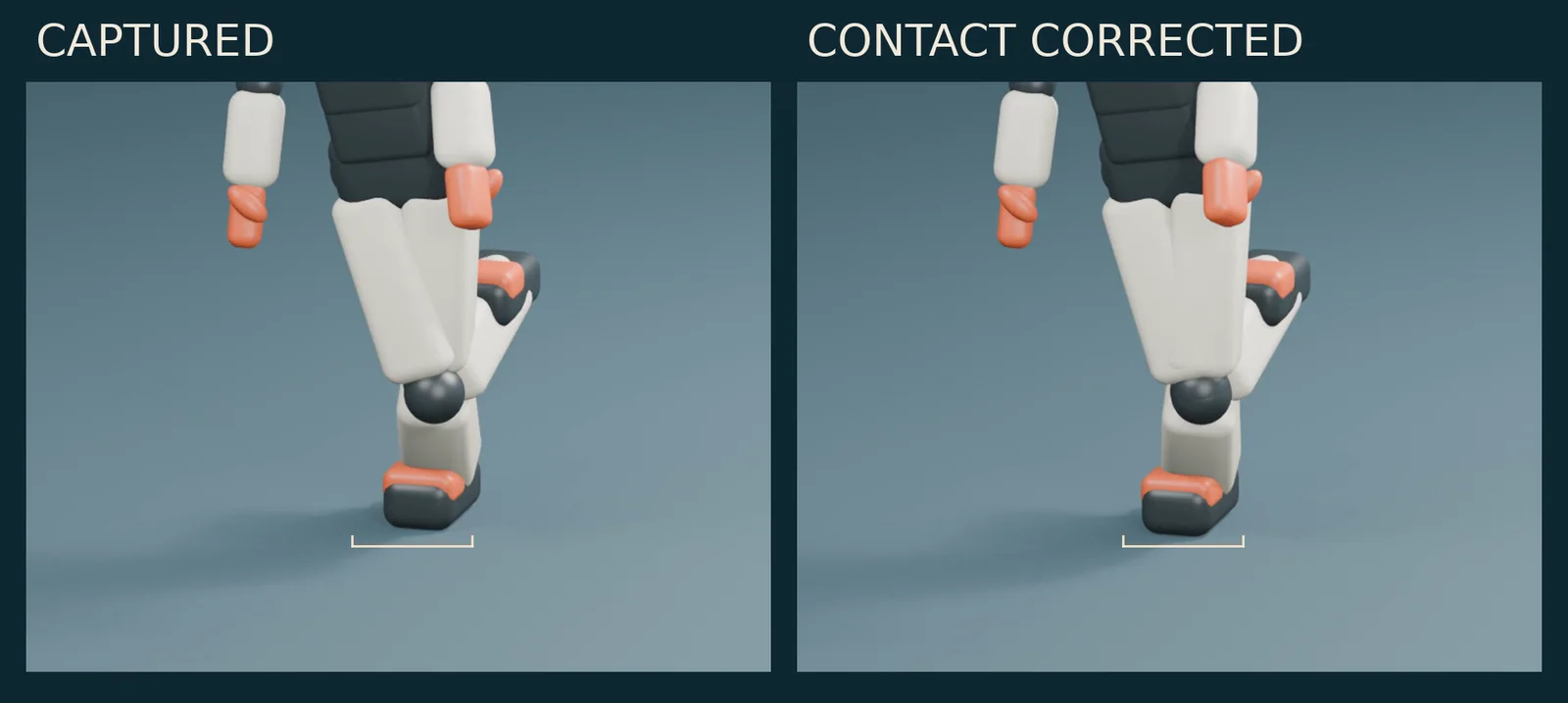
Character animation prompts benefit from explicit instructions about the rig, source motion, smoothing, and preserved actions. Voyager's editable Blender animation workflow demonstrates how captured and cleaned actions can remain separate for precise motion revisions.
Prompt pattern
In Blender, open the supplied character rig and the imported motion action. Preserve the original motion as 'Captured_Action' and create a separate editable action named 'Cleaned_Action'. Inspect the animation between frames 1 and 120 for abrupt position jumps, excessive arm rotation, foot sliding, and unstable root movement. Apply light smoothing only where needed, keeping the intended timing and major poses intact. Maintain the character's floor contact during standing poses and avoid adding movements that cannot be inferred from the source. Generate a side-by-side preview of the original and cleaned motion from the same camera angle. Save both actions, the rig, and the preview settings in the .blend project, and report any frames that still need manual correction.
Separating the captured and cleaned actions helps preserve the original reference while supporting controlled revisions. It also allows the animator to compare changes before committing to a final movement.
Challenges with AI scripting in Blender
Blender's Python API can build and revise complex scenes, but generated code can fail because of changed API calls, incorrect object references, missing assets, or execution context. These are workflow risks to test for, not a guarantee that a particular prompt will fail. Reliable AI-driven 3D production depends on script access, preview feedback, and preserved project files.
Possible failure points:
- Referencing objects by the wrong names
- Incorrect bone hierarchies in armatures
- Material node connections that produce unexpected results
- Version-specific API differences between Blender releases
Specify the Blender version you have installed, ask for a saved scene before destructive edits, and request a preview after major changes. A prompt naming a version should match the user's actual installation rather than assuming that a particular release is available everywhere.
When an agent should write a new 3D shot from scratch rather than operate Blender, vork, the headless engine our team builds, takes the scene as code and renders it from the command line. It is a research preview with far fewer tools than Blender; vork vs Blender compares them.
Setting up Voyager for creative software
Setup varies by operating system, application version, permissions, and agent authentication. Voyager provides built-in routes for supported creative applications, while optional MCP servers can add other integrations. Confirm the route that applies to the current task before asking the agent to edit important project files.
General installation process
- Download and open Voyager on a supported platform, then confirm the features needed for your workflow are available in that build.
- Install and open the creative software you intend to use. After Effects needs its own license; Blender is installed separately.
- Configure agent access and permissions in Voyager. Use a supported sign-in or provider configuration, and allow the application-specific scripting permissions when prompted.
- Check the connection method: Use Voyager's After Effects scripting route or Blender Python route for supported tasks. Add a separate MCP server only when the desired workflow requires it.
- Test a small operation on a saved copy: Create a named text layer in After Effects or list objects in Blender, preview the change, and confirm the project saves correctly.
After Effects scripting may need file and network access enabled inside its preferences, while operating-system automation permissions can require separate approval. In Blender, scripts can modify or delete scene data, so test on a duplicate file. Follow the documented platform-specific setup if the connection does not appear.
AI provider requirements
Authentication and billing depend on how Voyager's agent is configured:
- Voyager-managed models: Available model access and media generation are governed by the selected Voyager plan and credit allowance.
- Claude Code or Codex: Supported sign-ins can use an eligible existing subscription, separate from Voyager's managed-generation charges.
- External provider APIs: Keys can be configured where supported, and the provider bills eligible model usage under its own terms.
- Local or connected tools: Supported local processes and MCP servers may avoid cloud-model charges for some actions, but hardware, application, and third-party service costs still matter.
Voyager's pricing plans distinguish free desktop access from managed generation and cloud rendering. The desktop app is free to download, but that does not mean all model calls or GPU rendering are free. A license for After Effects and any paid third-party provider services are separate costs.
Common prompt categories that work
Animation jobs with explicit dimensions, duration, assets, and editable deliverables are easier to inspect than open-ended requests. The following prompts specify output structure so you can check the project in After Effects or Blender after the agent has finished.
Logo animations
Logo reveals involve predictable elements: the logo asset, a reveal animation type, timing, and style. Agents can construct the editable elements where their connection supports native layers and keyframes.
Prompt pattern
In After Effects, create a 5-second logo reveal using the supplied [filename.png] asset. Set the composition to 1920×1080 at 30fps with a transparent background. Center the logo, preserve its original aspect ratio, and name the layer 'brand_logo'. Animate opacity from 0% to 100% and scale from 85% to 105% during the first 20 frames, then settle at 100% scale by frame 30 using smooth easing. Add a subtle radial particle burst behind the logo using native shape layers, with #003366 as the accent color. Fade the particles out by frame 75 while keeping the logo visible through the final frame of the 5-second composition. Name all layers clearly, avoid third-party plugin dependencies, and keep the animation editable in the project.
After generation, review the timing curves, add any needed secondary motion, and refine the color treatment. The agent provides the initial structure; the motion and brand fit still require creative review.
Data visualization
Building charts in After Effects manually involves creating shapes, linking them to values, and animating each element. An agent can build that structure when it has access to the source data and a scripting connection that supports the required layers.
Prompt pattern
In After Effects, create an animated quarterly revenue bar chart using the attached [data.csv] file, provided it is accessible to the connected agent. Read the 'quarter' and 'revenue_usd' columns and create one bar for each quarter in chronological order. Use the actual CSV values without inventing missing data. Create a 1920×1080 composition at 30fps with an 8-second duration. Use #0066FF for the bars, #333333 for text, and a zero-based vertical axis. Animate the bars growing upward from 0% to their final heights between frames 15 and 90, staggered from left to right. Add quarter labels below each bar and formatted USD revenue values above them. Keep text and shapes as editable layers, name all chart elements clearly, and flag missing or invalid values rather than guessing.
Review the labels and plotted values against the CSV before delivery. The resulting typography, spacing, and motion can then be adjusted to match the project's visual system.
Social media format conversions
Reframing a 16:9 video for vertical (9:16), square (1:1), and other aspect ratios involves creating new compositions, repositioning content, and sometimes animating crops. Preserving editable timelines and source layers is particularly valuable for AI-assisted video editing across multiple delivery formats.
Prompt pattern
In After Effects, create a new composition named 'Instagram_Story_9x16' using the footage from the active composition. Set the output to 1080×1920 at 30fps and preserve the source duration and audio. Reposition and scale the footage to fill the vertical frame without stretching it. Keep the primary subject visible throughout the shot, using position keyframes where the subject moves. Maintain safe margins for important text and graphics, and avoid cropping faces or essential product details. Preserve the original composition, keep the new framing editable, and identify any frames that require manual review.
Inspect the reframed result shot by shot. A script can establish dimensions and keyframes, but it cannot guarantee that every face, subtitle, or product detail remains visible without visual checks.
Animated motion posters
Motion posters combine graphic design, typography, and animation into a single creative asset. The key is preserving the original design hierarchy while moving elements independently. A layered poster animation keeps artwork and live text separate so edits can be made without rebuilding the complete visual.
Prompt pattern
In After Effects, create a 10-second animated event poster using the supplied [event_poster.png] as a visual reference. Build a new 1080×1920 composition at 30fps and preserve the original palette, typography hierarchy, and event information. Recreate the event title, date, and location as separate editable text layers. Use the poster artwork as a reference layer and separate any provided foreground elements that are available as individual assets. Animate the main title entering between frames 0 and 30, introduce the decorative graphic through a gentle scale and rotation from frames 20 to 90, and reveal the event details between frames 90 and 150. Hold the final information clearly until the end. Keep text, shapes, keyframes, and masks editable, and save the original reference separately from the animation composition.
The prompt focuses on readable motion rather than animating every element simultaneously. A well-structured animated poster preserves typography, visual identity, and event information while introducing motion in a deliberate sequence.
Batch end card variations
Marketing teams often need multiple versions of the same animation for different campaigns, offers, or audiences. An agent can duplicate a template and update editable text while keeping the approved motion structure consistent.
Prompt pattern
In After Effects, use the existing composition named 'End_Card_Master' to create four editable variations without modifying the original. Keep the composition at 1920×1080, 30fps, and 5 seconds. Create versions named 'End_Card_A', 'End_Card_B', 'End_Card_C', and 'End_Card_D' with the headlines 'Start Creating', 'Explore the Collection', 'See What's New', and 'Get Started Today'. Preserve all existing brand colors, logo placement, fonts, timing curves, and animation keyframes. Automatically adjust text layout only when needed to prevent overflow, keeping the original typography hierarchy intact. Save every variation in the project and render one preview frame from each final composition. Check that all text remains within safe margins and report any version requiring manual layout review.
The resulting variations remain connected to the same design system. This makes it easier to manage repeated campaign updates through reusable motion design automation.
Blender to After Effects handoff
For a workflow spanning both applications, name the editable source project and the rendered handoff separately. Blender geometry remains editable in its Blender scene, while After Effects can add editable graphics over a render or image sequence.
Prompt pattern
In Blender, use the saved 'Product_Turntable.blend' scene to animate the product rotating 360 degrees over 120 frames at 30fps. Keep the geometry, materials, lighting, camera, and keyframes editable in the .blend file. Render a low-resolution preview for approval, then output a numbered PNG sequence with transparency if the render settings support it. In After Effects, import that sequence as footage into a 1920×1080, 30fps composition, add separate editable text and shape layers for a product name and callout, and save the .aep project. Preserve both source projects. If the product geometry needs changing, return to Blender and rerender rather than treating the imported frames as editable 3D objects.
The handoff preserves editable work in each application without promising that a Blender scene becomes native After Effects geometry. Check the frame sequence, alpha channel, footage interpretation, and both saved files before final export.
When prompts fail and how to fix them
Agent-generated animations do not always work on the first attempt. Diagnose the specific failure and request a bounded change instead of allowing a broad regeneration to overwrite a project that is otherwise correct. In After Effects MCP workflows, reviewing the saved composition and preview output helps identify the changes needed before further automation.
Layers created but nothing visible
The agent may have created objects outside the frame, scaled them to zero, or hidden them. In After Effects, ask:
Check layer visibility, scale, and positions against the composition bounds.
In Blender, ask:
Frame the camera around the objects and render a preview.
Review the result before accepting further changes.
Expression errors on playback
The agent may have referenced a layer by the wrong name or used syntax that does not work in the installed version. Copy the exact error into a follow-up prompt and ask it to fix the reference or syntax only. Test the relevant property across the animation, not just at its first frame.
Generated code for wrong software version
Agents sometimes use methods or parameters from different software versions. Specify the version installed on your machine, for example
for After Effects 2027 (27.0)
or
for my installed Blender version.
Ask the agent to check relevant API calls and report any operation the connection cannot support.
Unexpected style or motion
When the result does not match the intended direction, refine it with specific changes instead of regenerating everything.
Move the final keyframe 12 frames earlier
or
Change the easing to linear
gives the agent a narrower request and leaves the rest of the scene easier to review.
Final verdict: Voyager for editable animation
Voyager is a strong choice for creators and production teams who want to turn animation prompts into editable work across After Effects, Blender, and other supported creative applications. Its desktop AI-agent harness brings agent-driven production, creative software integrations, and model access into one connected workflow. Rather than treating an animation prompt as a request for a single finished clip, Voyager helps creators develop, inspect, revise, and preserve the project elements that support ongoing production.
For motion designers, Voyager's After Effects integration enables agent-assisted composition work, including layers, keyframes, expressions, previews, and revisions. Its Blender integration extends that approach to 3D geometry, materials, camera animation, and rendering. Together, these capabilities make Voyager particularly valuable for logo animations, animated typography, product visualization, social media formats, and cross-application handoffs.
Voyager also provides flexibility through its supported agent runtimes, optional MCP integrations, and built-in creative editors. These capabilities support connected motion design workflows, helping teams create reusable animation patterns while keeping creative direction and final review in the hands of the designer.
For animation projects that depend on editable layers, reusable prompts, consistent revisions, and professional creative software, Voyager provides a compelling foundation for AI-assisted production in 2026.
Frequently asked questions
How do AI animation agents differ from AI video generators?
AI video generation typically returns rendered clips that can be edited as footage, but not as original source layers. Compatible animation agents can create editable After Effects compositions or Blender scenes with layers, objects, and keyframes for revision. An editable project handoff matters because imported generated footage does not automatically become independent native elements.
What AI subscription do I need to use these tools?
Requirements depend on the agent configuration. Voyager supports eligible Claude Code or Codex sign-ins, while separately billed API keys and managed models are other options. Its desktop app is free to download, but managed generation and cloud rendering may use credits under the selected Voyager pricing plan. External software licenses remain separate, and provider charges may depend on tokens, generated media, duration, or other usage units.
Can animation agents write After Effects expressions?
Yes. Expression generation is a use case for agents with scripting access. They can draft JavaScript expressions for wiggle, timing, slider controls, and layer relationships. When an expression fails, paste the error into a follow-up prompt. The code needs validation in After Effects before delivery.
What happens when an agent creates something I do not want?
Send a follow-up prompt describing the change. Agents can modify elements without rebuilding the scene. Requests such as
change all text to Helvetica Bold
or
reduce animation duration by half
should target the project. Preview and save the result.
How does Voyager handle After Effects and Blender workflows?
Voyager uses a bundled scripting connection for After Effects actions and Python scripts for Blender tasks, so MCP servers are not required for those built-in routes. In After Effects, it can work with compositions, layers, expressions, and previews; in Blender, it can build and revise scenes and render frames. The required applications must be installed, and After Effects needs its own license. Supported actions vary with permissions, software versions, and operating systems, with After Effects scripting supported on macOS and Windows. Keep the editable .aep and .blend projects, review previews, and treat imported generated footage as rendered media rather than native source elements.
Voyager is a desktop AI agent for creative work
Describe what you want to make; Voyager plans it, uses your apps and tools, and keeps everything editable.